LLVM-MCA: docs

Introduction

LLVM Machine Code Analyzer 是一种性能分析工具,它使用llvm中可用的信息(如调度模型)静态测量特定CPU中机器代码的性能。

性能是根据吞吐量处理器资源消耗来衡量的。该工具目前适用于在后端中使用LLVM调度模型的处理器。

该工具的主要目标不仅是预测代码在目标上运行时的性能,还帮助诊断潜在的性能问题。

给定汇编代码,llvm-mca可以估计每个周期的指令数(IPC)以及硬件资源压力。分析和报告风格的灵感来自英特尔的IACA工具。

github

https://github.com/llvm/llvm-project/tree/main/llvm/tools/llvm-mca

docs

https://llvm.org/docs/CommandGuide/llvm-mca.html

options

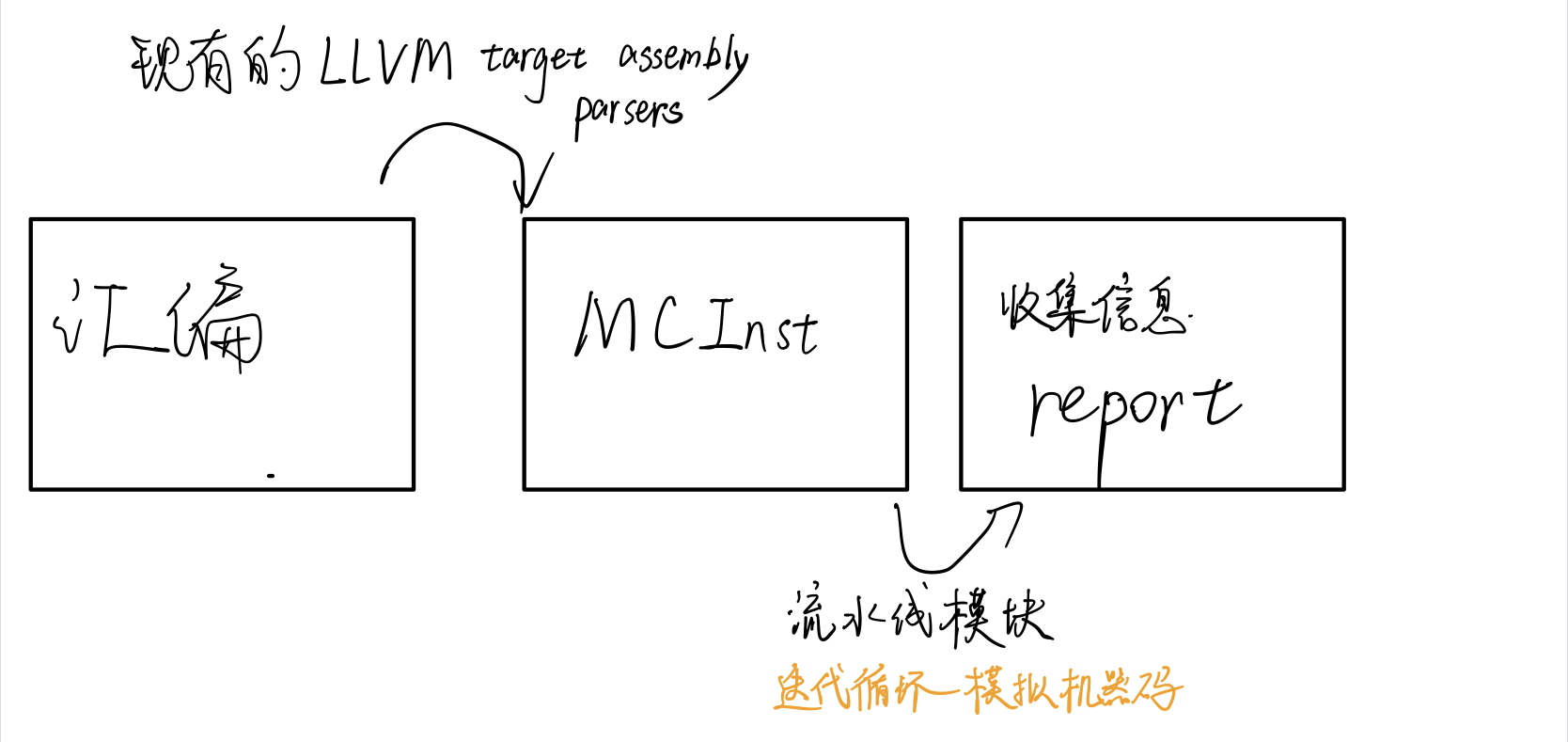
architecture

1
2
3
4
5
6
-mtriple=<target triple>
eg. -mtriple=x86_64-unknown-unknown
-march=<arch>
Specify the architecture for which to analyze the code. It defaults to the host default target.
-march=<arch>
Specify the architecture for which to analyze the code. It defaults to the host default target.
1
2
3
4
# 查看支持的arch
llc --version
# 查看具体支持的CPU Architecture
llc -march=x86 -mattr=help

output-report

1
2
3
4
5
6
7
8
-output-asm-variant=<variant id>
为工具生成的报告指定输出程序集变量。???
-print-imm-hex
优先16进制输出。
-json
除了瓶颈分析,基本都支持json格式输出视图
-timeline
打印指令流水线情况

runtime options

1
2
3
4
5
6
7
8
9
10
11
12
13
-dispatch=<width>
为处理器指定不同的调度宽度。调度宽度默认为处理器调度模型中的“IssueWidth”字段。
-register-file-size=<size>
指定寄存器文件的大小。指定时,该项会限制可用于寄存器重命名的物理寄存器的数量。此标志的值为零意味着“无限数量的物理寄存器”。
-iterations=<number of iterations>
指定要运行的迭代次数。如果此标志设置为 0,则该工具会将迭代次数设置为默认值(即 100)。
-noalias=<bool>
loads and stores don’t alias
-lqueue=<load queue size>
-squeue=<store queue size>
在工具模拟的加载/存储单元中指定加载队列的大小。默认情况下,该工具假定加载队列中的条目数量不受限制。此标志的零值将被忽略,而是使用默认加载队列大小。
-disable-cb
强制使用通用的 CustomBehaviour 和 InstrPostProcess 类,而不是使用目标特定的实现。通用类从不检测任何自定义危险或对指令进行任何后处理修改。

more values/Info

1
2
3
4
5
6
7
8
9
10
11
12
13
14
15
16
17
-resource-pressure
Enable the resource pressure view. This is enabled by default.
-register-file-stats
启用注册文件使用统计。
-dispatch-stats
-scheduler-stats
-retire-stats
-instruction-info
启用额外的调度/发出/retire control unit统计。该视图收集和分析指令分派事件,以及静态/动态分派停顿事件。默认情况下禁用此视图。
-show-encoding
打印指令16进制
-all-stats
-all-views
-instruction-tables
这与资源压力视图不同,因为它不需要模拟代码。相反,它按顺序打印每个指令的资源压力的理论均匀分布。
-bottleneck-analysis
打印有关影响吞吐量的瓶颈的信息。这种分析可能很昂贵,并且默认情况下是禁用的。瓶颈在摘要视图中突出显示。具有有序后端的处理器目前不支持瓶颈分析。???

实现逻辑

样例分析

quick overview of the performance throughput

1
2
3
4
5
6
7
8
9
Iterations:        300
Instructions: 900
Total Cycles: 610
Total uOps: 900

Dispatch Width: 2
uOps Per Cycle: 1.48
IPC: 1.48
Block RThroughput: 2.0
  1. IPC
    1. 理论最大值是$$\frac{OneLoopInstructions}{Block_RThroughput}=(OneLoopInstructions)*(Block_Throughput)$$
  2. uOps Per Cycle
    1. simulated micro opcodes (uOps)
    2. 每个周期的simulated micro opcodes数
    3. 在不考虑循环依赖的情况下,理论上最大值是$$\frac{OneLoopUOps}{Block_RThroughput}=(OneLoopUOps)*(Block_Throughput)$$
    4. A delta between Dispatch Width and this field is an indicator of a performance issue.
    5. The delta between the Dispatch Width (2.00), and the theoretical maximum uOp throughput (1.50) is an indicator of a performance bottleneck caused by the lack of hardware resources, and the Resource pressure view can help to identify the problematic resource usage.
  3. Dispatch Width
    1. 发射到乱序后端的最大微指令操作数(the maximum number of micro opcodes/uOps)?
  4. Block RThroughput (Block Reciprocal Throughput)
    1. 在不考虑循环依赖的情况下,理论上的每次循环的最大block或者iterations数
    2. 受限于dispatch rate和the availability of hardware resources.

Instruction info view

1
2
3
4
5
6
7
8
9
10
11
12
Instruction Info:
[1]: #uOps
[2]: Latency
[3]: RThroughput
[4]: MayLoad
[5]: MayStore
[6]: HasSideEffects (U)

[1] [2] [3] [4] [5] [6] Instructions:
1 2 1.00 vmulps %xmm0, %xmm1, %xmm2
1 3 1.00 vhaddps %xmm2, %xmm2, %xmm3
1 3 1.00 vhaddps %xmm3, %xmm3, %xmm4

显示了指令里队列每条指令的延迟吞吐量的倒数

RThroughput是指令吞吐量的倒数。在不考虑循环依赖的情况下,吞吐量是单周期能执行的同类型指令的最大数量

Resource pressure view

1
2
3
4
5
6
7
8
9
10
11
12
13
14
15
16
17
18
19
20
21
22
23
24
25
Resources:
[0] - JALU0
[1] - JALU1
[2] - JDiv
[3] - JFPA
[4] - JFPM
[5] - JFPU0
[6] - JFPU1
[7] - JLAGU
[8] - JMul
[9] - JSAGU
[10] - JSTC
[11] - JVALU0
[12] - JVALU1
[13] - JVIMUL

Resource pressure per iteration:
[0] [1] [2] [3] [4] [5] [6] [7] [8] [9] [10] [11] [12] [13]
- - - 2.00 1.00 2.00 1.00 - - - - - - -

Resource pressure by instruction:
[0] [1] [2] [3] [4] [5] [6] [7] [8] [9] [10] [11] [12] [13] Instructions:
- - - - 1.00 - 1.00 - - - - - - - vmulps %xmm0, %xmm1, %xmm2
- - - 1.00 - 1.00 - - - - - - - - vhaddps %xmm2, %xmm2, %xmm3
- - - 1.00 - 1.00 - - - - - - - - vhaddps %xmm3, %xmm3, %xmm4

每次循环或者每条指令执行,消耗的资源周期数。从而找到高资源占用的部分。

Timeline View

可打印流水线情况

1
2
3
4
5
6
7
8
9
10
11
12
13
14
15
16
17
18
19
20
21
22
23
24
25
26
Timeline view:
012345
Index 0123456789

[0,0] DeeER. . . vmulps %xmm0, %xmm1, %xmm2
[0,1] D==eeeER . . vhaddps %xmm2, %xmm2, %xmm3
[0,2] .D====eeeER . vhaddps %xmm3, %xmm3, %xmm4
[1,0] .DeeE-----R . vmulps %xmm0, %xmm1, %xmm2
[1,1] . D=eeeE---R . vhaddps %xmm2, %xmm2, %xmm3
[1,2] . D====eeeER . vhaddps %xmm3, %xmm3, %xmm4
[2,0] . DeeE-----R . vmulps %xmm0, %xmm1, %xmm2
[2,1] . D====eeeER . vhaddps %xmm2, %xmm2, %xmm3
[2,2] . D======eeeER vhaddps %xmm3, %xmm3, %xmm4


Average Wait times (based on the timeline view):
[0]: Executions
[1]: Average time spent waiting in a scheduler's queue
[2]: Average time spent waiting in a scheduler's queue while ready
[3]: Average time elapsed from WB until retire stage

[0] [1] [2] [3]
0. 3 1.0 1.0 3.3 vmulps %xmm0, %xmm1, %xmm2
1. 3 3.3 0.7 1.0 vhaddps %xmm2, %xmm2, %xmm3
2. 3 5.7 0.0 0.0 vhaddps %xmm3, %xmm3, %xmm4
3 3.3 0.5 1.4 <total>

影响因素包括:

  1. 数据冲突/依赖:读后写,写后读依赖 。无法指令级并行,也可以通过寄存器重命名解决
  2. 结构冲突:占用发射位 或者 同一硬件
  3. 控制冲突:分支?
  4. instructions must retire in program order, so [1,0] has to wait for [0,2] to be retired first

Bottleneck Analysis

  • 可以分析出数据冲突/依赖和结构冲突的影响大小
  • 准确性取决于模拟和是否有对应CPU模型。
  • 暂时不支持有序后端。
1
2
3
4
5
6
7
8
9
Cycles with backend pressure increase [ 91.52% ]
Throughput Bottlenecks:
Resource Pressure [ 0.01% ]
- SBPort0 [ 0.01% ]
- SBPort1 [ 0.01% ]
- SBPort5 [ 0.01% ]
Data Dependencies: [ 91.51% ]
- Register Dependencies [ 91.51% ]
- Memory Dependencies [ 10.76% ]
  • 端口信息来自TableGen llvm/lib/Target/X86/X86SchedSandyBridge.td
  • 鲲鹏920的来自 llvm/lib/Target/AArch64/AArch64SchedTSV110.td

额外信息

  1. Dynamic Dispatch Stall Cycles
  2. Dispatch Logic
    1. 可以看出流水线发射满带宽或几条指令的时间占比
  3. Schedulers
    1. 每个周期微指令发射数占比
  4. Scheduler’s queue usage
    1. 执行时使用的平均或最大buffer entries (i.e., scheduler queue entries)

    2. AMD Jaguar

    3.   JALU01 - A scheduler for ALU instructions.
        JFPU01 - A scheduler floating point operations.
        JLSAGU - A scheduler for address generation.
        
      1
      2
      3
      4
      5
      6
      7
      8
      9
      10
      11
      12
      13
      14
      15
      16
      17
      18
      19
      20
      21
      22
      23
      24
      25
      26
      27
      28
      29
      30
      31
      32
      33
      34
      35
      36
      37
      38
      39
      40
      41
      42
      43
      44
      45
      46
      47
      48
      49
      50
      51
      52
      53
      54
      55
      56
      57
      58
      59
      60
      61
      62
      63
      64
      65
      66
      67
      68
      69
      70
      71
      72
      73
      74
      75
      76
      77
      78
      79
      80
      81
      82
      83
      84
      85
      86
      87
      88
      89
      90
      91
      92
      93
      94
      95
      96
      97
      98
      99
      100
      101
      102
      103
      104
      105
      106
      107
      108
      109
      110
      111
      112
      113
      114
      115
      116
      117

      5. Retire Control Unit
      1. 在一个周期里有多少指令retired的占比(好吧,感觉有语病)
      6. A re-order buffer (ROB) 的使用情况
      7. Register File statistics
      1. physical register file (PRF)
      2. floating-point registers (JFpuPRF)
      3. integer registers (JIntegerPRF)

      ## Instruction Flow

      llvm-mca 假设指令在模拟开始之前已经全部解码并放入队列中。因此,指令提取和解码阶段没有被计算。未考虑前端的性能瓶颈。此外,llvm-mca 不模拟分支预测。

      ### Instruction Dispatch

      处理器的默认 dispatch width值等于LLVM’s scheduling model里的IssueWidth值。

      An instruction can be dispatched if:

      * The size of the **dispatch group** is smaller than processor’s dispatch width.
      * There are enough entries in the **reorder buffer**.
      * There are enough **physical registers** to do register renaming.
      * The schedulers are **not full**.

      reorder buffer负责跟踪命令,使之按照程序顺序retired结束。其默认值为 MicroOpBufferSize 。

      各种Buffered resources 被视作scheduler resources.

      ### Instruction Issue

      每个处理器调度器实现一个指令缓冲区。指令必须在调度程序的缓冲区中等待,直到输入寄存器操作数可用。只有在那个时候,指令才符合执行的条件,并且可能会被发出(可能是乱序的)以供执行。 llvm-mca 在调度模型的帮助下计算指令延迟。

      llvm-mca 的调度器旨在模拟多处理器调度器。调度器负责跟踪数据依赖关系,并动态选择指令消耗哪些处理器资源。它将处理器资源单元和资源组的管理委托给资源管​​理器。资源管理器负责选择指令消耗的资源单元。例如,如果一条指令消耗了一个资源组的1cy,则资源管理器从该组中选择一个可用单元;默认情况下,资源管理器使用循环选择器来保证资源使用在组的所有单元之间均匀分配。

      llvm-mca’s scheduler internally groups instructions into three sets:

      * WaitSet: a set of instructions whose operands are not ready.
      * ReadySet: a set of instructions ready to execute.
      * IssuedSet: a set of instructions executing.

      ### Write-Back and Retire Stage

      retire control unit

      1. When instructions are executed,the flags the instruction as “ready to retire.”
      2. Instructions are retired in program order
      3. free the physical registers

      ### Load/Store Unit and Memory Consistency Model

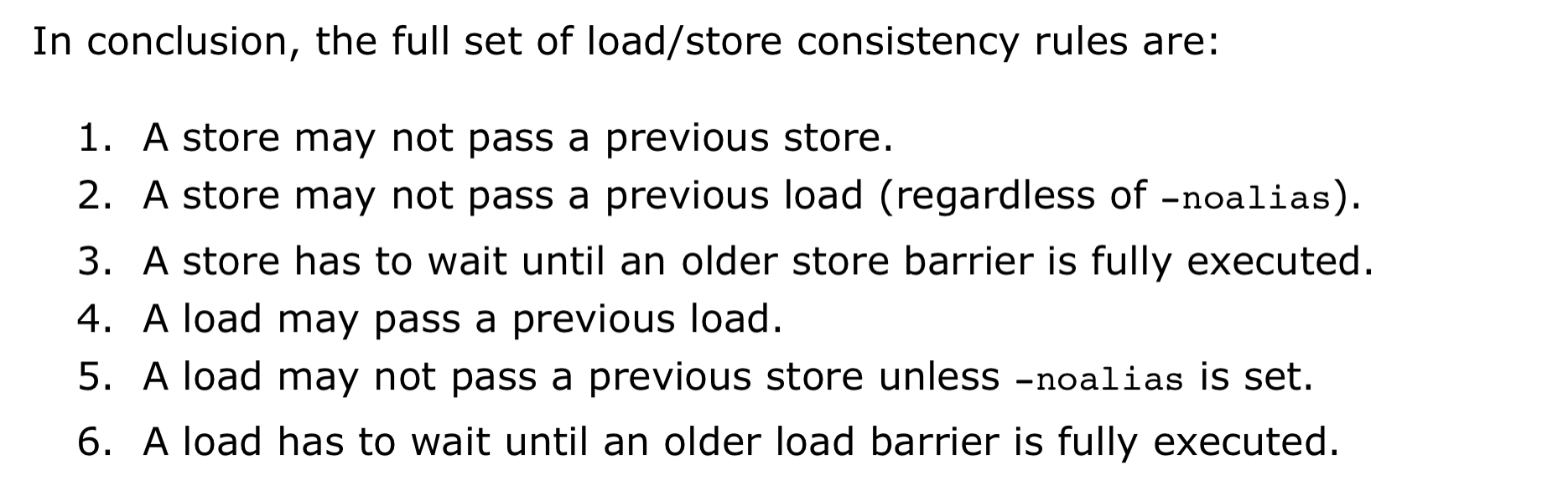
      load/store unit (LSUnit)用来模拟乱序memory操作

      The rules are:

      1. A younger load is allowed to pass an older load only if there are no intervening stores or barriers between the two loads.
      2. A younger load is allowed to pass an older store provided that the load does not alias with the store.
      3. A younger store is not allowed to pass an older store.不能交换顺序的意思
      4. A younger store is not allowed to pass an older load.

      假设 loads do not alias (-noalias=true) store operations.Under this assumption, younger loads are always allowed to pass older stores. ???

      LSUnit不打算跑alias analysis来预测何时load与store不相互alias???

      in the case of write-combining memory, rule 3 could be relaxed to allow reordering of non-aliasing store operations.???

      LSUnit不管的其余三点:

      1. The LSUnit does not know when store-to-load forwarding may occur.
      2. The LSUnit does not know anything about cache hierarchy and memory types.
      3. The LSUnit does not know how to identify serializing operations and memory fences.
      4. The LSUnit does not attempt to predict if a load or store hits or misses the L1 cache(不考虑cache命中,默认是命中L1,产生the load-to-use latency的最乐观开销)

      llvm-mca 不知道序列化操作或内存屏障之类的指令。 LSUnit 保守地假设同时具有“MayLoad”和未建模副作用的指令的行为类似于“软”load-barrier。这意味着,它在不强制刷新load队列的情况下序列化加载。类似地,“MayStore”和具有未建模副作用的指令被视为store障碍。完整的memory-barrier是具有未建模副作用的“MayLoad”和“MayStore”指令。LLVM的实现是不准确的,但这是我们目前使用 LLVM 中可用的当前信息所能做的最好的事情。

      load/store barrier会占用在load/store 队列里占用一项。
      当load/store barrier是其队列里oldest项时,其会被执行
      ![](https://pic.shaojiemike.top/img/440472FD7AB14BC3C1F29BD2D565ACDF.png)

      ### In-order Issue and Execute

      有序处理器被建模为单个 InOrderIssueStage 阶段。它绕过 Dispatch、Scheduler 和 Load/Store 单元。一旦它们的操作数寄存器可用并且满足资源要求,就会发出指令。根据LLVM的调度模型中IssueWidth参数的值,可以在一个周期内发出多条指令。一旦发出,指令就会被移到 IssuedInst 集,直到它准备好retire。 llvm-mca 确保按顺序提交写入。但是,如果 RetireOOO 属性for at least one of its writes为真,则允许指令提交写入并无序retire???

      ## Custom Behaviour 自定义行为

      某些指令在该模型中并不能被准确的模拟。为了几条指令而修改模型不是个好的选择,一般通过**CustomBehaviour**类对某些指令进行特殊建模:自定义数据依赖,以及规避、单独处理特殊情况。

      为此,llvm-mca设置了一个通用的以及多个特殊的**CustomBehaviour**类。下面两种情况下会使用通用类:

      1. 开启了`-disable-cb`选项
      2. 不存在针对某目标的特殊类(通用类也做不了什么,我什么也做不到😥)

      但是注意目前只有in-order流水线实现了**CustomBehaviour**类,out-order流水线将来也会支持。

      该类主要通过`checkCustomHazard()`函数来实现,通过当前指令和真正流水线中执行的指令,来判断当前指令需要等待几个周期才能发射。

      如果想对没有实现的目标添加**CustomBehaviour**类,可以参考已有的实现,比如在`/llvm/lib/Target/AMDGPU/MCA/`目录下。

      ## Custom Views 自定义视图

      关于自定义的视图的添加路径,如果**没有输出**从未在MC layer classes (MCSubtargetInfo, MCInstrInfo, etc.)里出现过的**新后端值**,请把实现加入`/tools/llvm-mca/View/`。相反,请加入`/lib/Target/<TargetName>/MCA/`目录。

      关于Custom Views所需内容,需要写特殊的**CustomBehaviour**类来覆写`CustomBehaviour::getViews()`函数,根据位置的不同还有三种实现`getStartViews(), getPostInstrInfoViews(),getEndViews()`。

      ## 影响准确性的因素

      调度模型不仅用于计算指令延迟和吞吐量,还用于了解可用的处理器资源以及如何模拟它们。

      llvm mca进行分析的质量不可避免地受到**llvm中调度模型质量**的影响。

      ## 功能(能估计的值

      1. IPC
      2. 硬件资源压力resource-pressure
      3. 一些额外Info?
      1.

      register-file-stats -dispatch-stats -scheduler-stats -retire-stats -instruction-info instruction-tables
      1
      2
      3
      4
      5
      6
      7

      4. 吞吐量瓶颈?

      ### 支持对特定代码块的分析

      1. 汇编代码,支持命名和嵌套

    LLVM-MCA-BEGIN block-name

    add %eax, %eax

    LLVM-MCA-END

    1
    2
    3

    2. 高级语言,通过内联汇编实现

    int foo(int a, int b) {
    __asm volatile(“# LLVM-MCA-BEGIN foo”);
    a += 42;
    __asm volatile(“# LLVM-MCA-END”);
    a *= b;
    return a;
    }

    
    但是,这会干扰循环矢量化等优化,并可能对生成的代码产生影响。具体影响请对比汇编代码。
    

相关论文

Google学术搜llvm-mca,一堆论文。但是不急着看,因为没有预备知识,没有问题的去看论文。效率和收获很低的,而且会看不懂。

相关项目

mc-ruler

mc-ruler是整合了llvm-mca的cmake,可以打印指定部分的代码分析信息。如果之后要测试可能用得上。

需要进一步的研究学习

  1. 具体功能
  2. llvm如何实现的,要看代码。

遇到的问题

  1. (llvm-mca detects Intel syntax by the presence of an .intel_syntax directive at the beginning of the input. By default its output syntax matches that of its input.)
  2. ???的地方
  3. 大概看了一下功能,但是性能怎么对比呢。准确值是多少呢?
    1. arm kunpeng pmu-tools 实现
  4. 每次的估计值会波动吗?

如何和大神交流呢+提问的艺术
开题缘由、总结、反思、吐槽~~

参考文献

Switch emulator on PC

合法使用

虽然 Ryujinx 模拟器项目本身是开源免费且合法的,但它默认情况下并不能直接运行市面上发行的各种商业游戏,因为它并不包含 Switch 系统固件,也没有游戏 ROM

而按照国外的法规,如果你用户购买了主机和游戏,将其内容 DUMP (提取) 出来自己使用是合法的。

所以,无论是 Ryujinx 还是 Yuzu 等模拟器,想要开玩都需要先完成

  • 安装系统固件和
  • prod.keys 密钥等步骤。
    • 如果游戏要求最新的key和firmware你需要去更新

基本流程

  1. 下载 Ryujinx 模拟器主程序
  2. 下载 prod.keys 密钥文件以及 Switch 的系统固件 (Firmware)
  3. 自行网上搜索下载你喜欢的任天堂游戏文件,支持 .NSP 或者 .XCI 格式

密钥文件以及 Switch 的系统固件

Ryujinx (龙神)模拟器

率先支持了ARM和苹果 M 系列芯片

简易步骤教程:

  1. 下载模拟器对应github
  2. 将 Ryujinx 模拟器主程序解压到「不包含中文的路径」下。
  3. 首次启动 Ryujinx 模拟器后,会提示找不到 key 文件的错误
    1. 点击菜单 文件 (File) → 打开 Ryujinx 文件夹 (Open Ryujinx Folder),会弹出模拟器数据所在的目录。
    2. prod.keys 文件放进到 Ryujinx 目录中的 system 文件夹里,重启模拟器
  4. 放置好 keys 文件之后就开始安装固件 (Firmware) 了,
    1. 点击菜单 工具 (Tools)→安装固件 (Install Firmware)→从 XCI 或 ZIP 安装固件 (Install a firmware from XCI or ZIP),选择你下载到的 Firmware 压缩包(不需解压),
    2. 模拟器就会开始安装,直到显示安装完成即可。
  5. 此时已经可以运行 Switch 游戏了,
    1. 点击菜单 选项 (Options) → 设置 (Settings),在 用户界面 (General) → 游戏目录 (Game Directories) 下点击 添加 (Add) 来「添加一个游戏 ROM 文件存放目录」。
    2. 此后,模拟器会自动加载出存放在这些文件夹里的游戏列表。

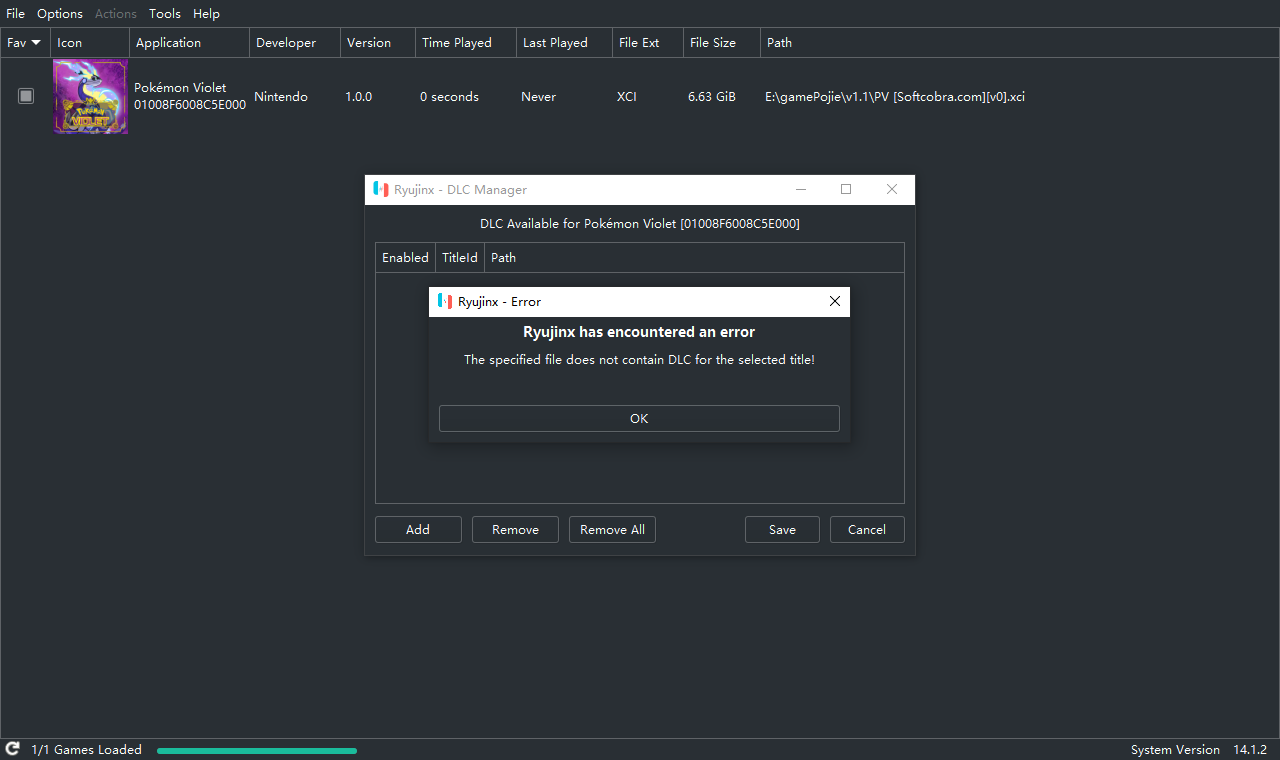
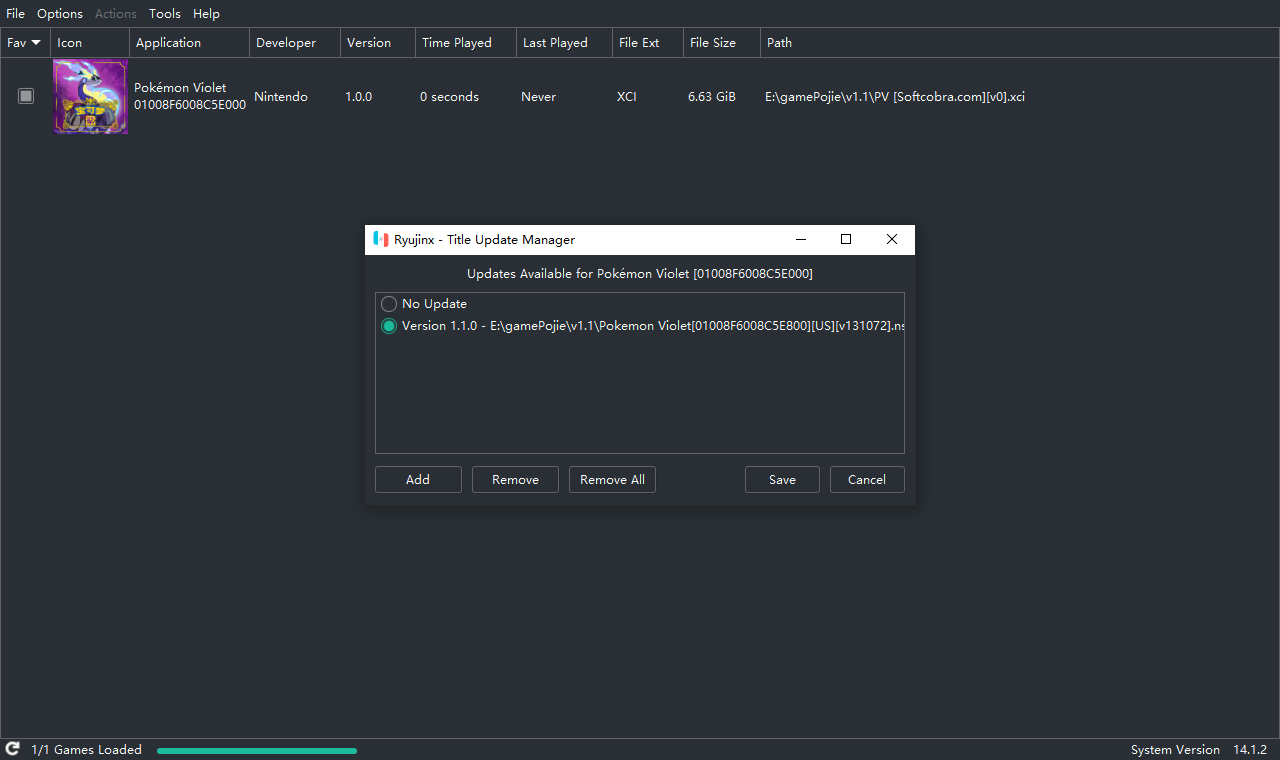
安装nsp DLC文件

不是

而是

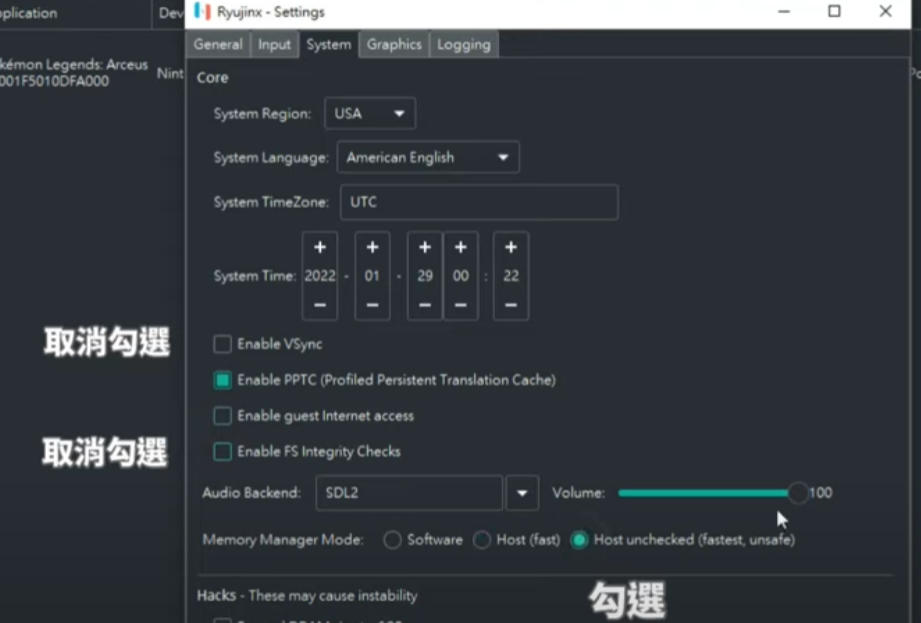
性能优化

YUZU(柚子)模拟器

yuzu,奶刃2好像都是用这个

密钥缺失

将你原来的User文件夹和ROM文件夹拖到新版模拟器文件夹的根目录即可。

prod.keys 文件放在Yuzu\user\keys

更新密钥和固件

  • 下面两个目录的内容都可以删除,然后解压
  • keys解压到Yuzu\user\keys
  • 固件解压到Yuzu\user\nand\system\Contents\registered

YUZU模拟器使用教程

https://www.playdanji.com/yuzu

YUZU金手指

https://www.playdanji.com/yuzujinshouzhi

YUZU软件升级方法

Early Access版本是需要花钱订阅才能下载的。

github的release直接下载zip后解压替换即可。

YUZU存档位置

游戏右键,打开存档位置。

退出全屏

F11

YUZU 安装 nsp和xci文件

key和中文的问题,建议用之前好的文件

https://zhuanlan.zhihu.com/p/406048136

安装升级补丁nsp文件和DLC

导入NAND文件即可

异度之刃2

打包本体1

30帧720P

https://switch520.com/23050.html

推荐OpenGL模式

v模式,暗场景会过曝。

画质补丁

贴吧老哥的放入目录

1
E:\gamePojie\NaiRen2\A3285 v2.0.2_yuzuEA2077\user\sdmc\atmosphere\contents

但是没什么用。

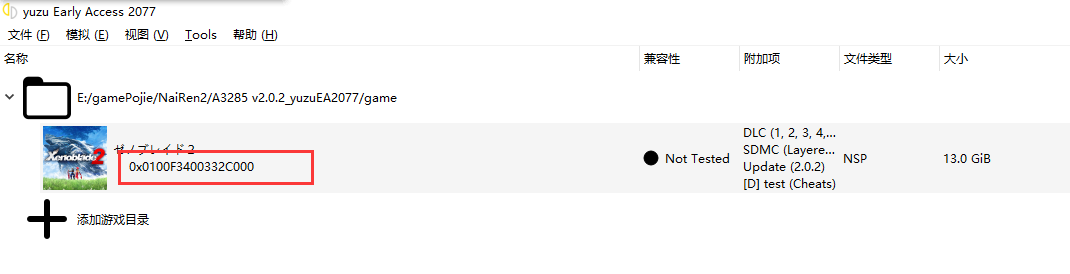
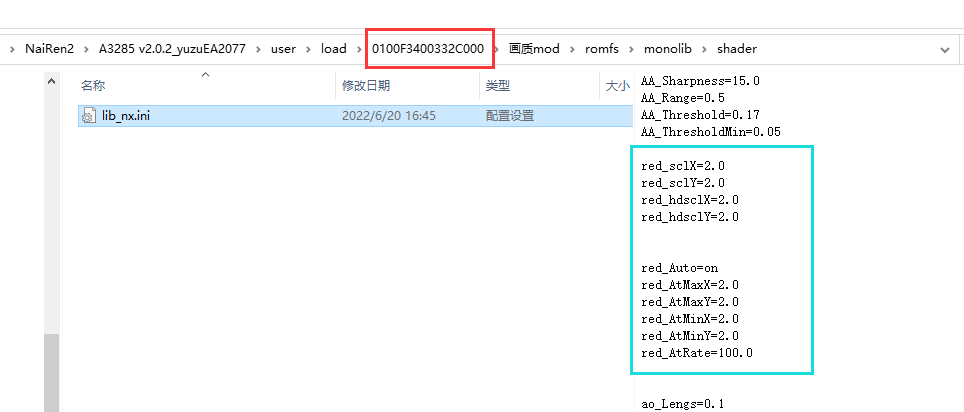
ini配置原理是,如下图对应配置目录

放入如下修改的ini文件来修改画质

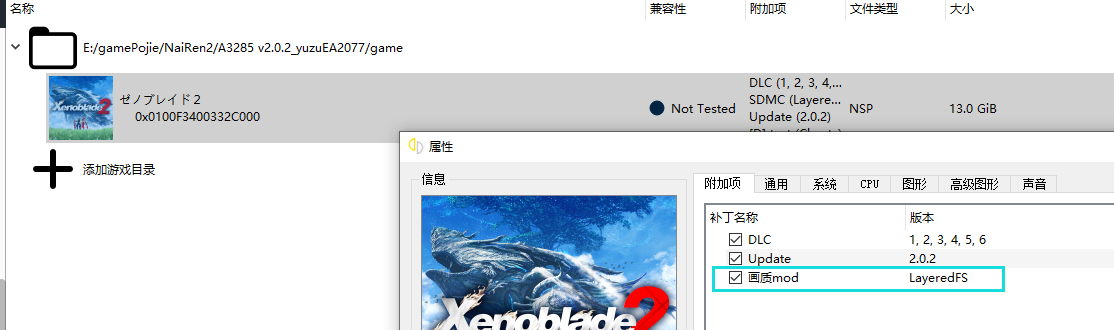
如下图成功

贴吧10楼:刚试了下,我把属性的mod选项关掉,然后把0100F3400332C000的画质mod删掉,效果一样有,所以效果应该只能在0100F3400332D001\画质mod\romfs\monolib\shader下的lib_nx.ini里改,其他的都没用

1
2
3
4
5
6
7
8
9
10
11
12
red_sclX=2.0
red_sclY=2.0
red_hdsclX=2.0
red_hdsclY=2.0


red_Auto=on
red_AtMaxX=2.0
red_AtMaxY=2.0
red_AtMinX=2.0
red_AtMinY=2.0
red_AtRate=100.0

2.0就是1440p,1.0就是原版720p。你们可以试试改其他的

帧数补丁

60帧补丁实际效果远没有60帧而且一堆副作用,不用浪费时间了

bug花屏

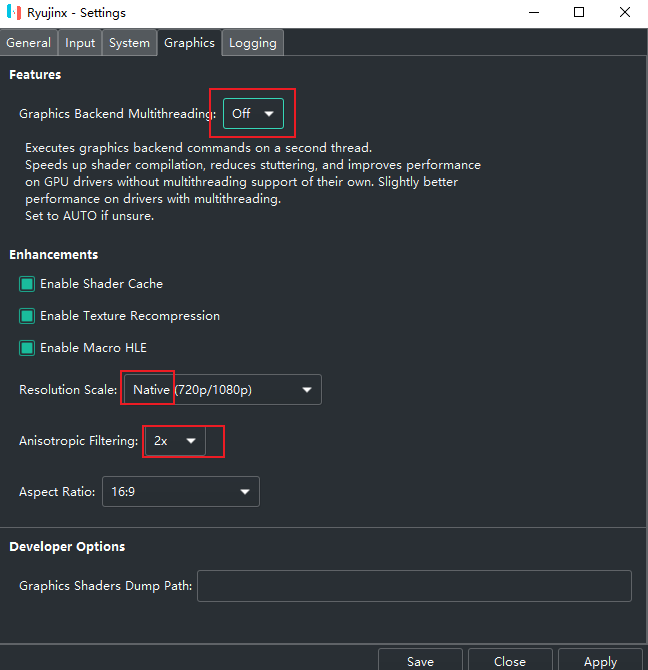
按照B站设置,主要改了GLSL

塞尔达-旷野之息

游侠论坛的cemu模拟的效果就不错

塞尔达-王国之泪

  • yuzu 1414以上
  • keys firmware 16.0.2以上

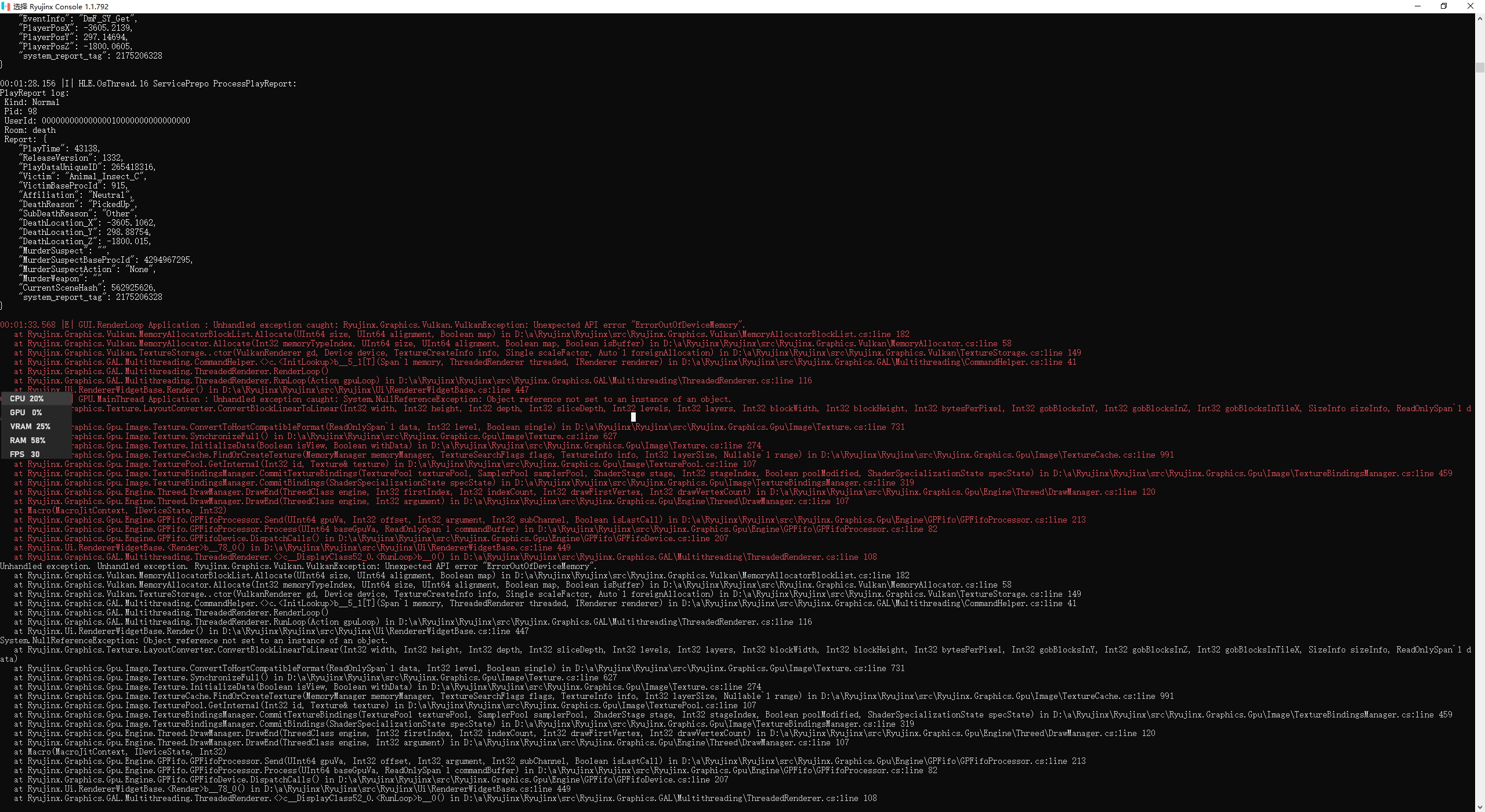
龙神模拟器,会经常闪退,暂时不知道解决办法(Cache PPTC rebuild?)。yuzu没有闪退的问题

需要进一步的研究学习

暂无

遇到的问题

暂无

开题缘由、总结、反思、吐槽~~

之前买了正版的switch,游戏也入了两三千。旷/荒野之息,奥德赛,奶刃2都通关了。可惜被妈妈没收了~

想研究一下,PC模拟,记录踩坑过程

参考文献

Services Systemd Systemclt

区别

Service

历史上,Linux 的启动一直采用init进程。
下面的命令用来启动服务。

1
2
3
$ sudo /etc/init.d/apache2 start
# 或者
$ service apache2 start

这种方法有两个缺点。

一是启动时间长。init进程是串行启动,只有前一个进程启动完,才会启动下一个进程。

二是启动脚本复杂。init进程只是执行启动脚本,不管其他事情。脚本需要自己处理各种情况,这往往使得脚本变得很长。

Systemd

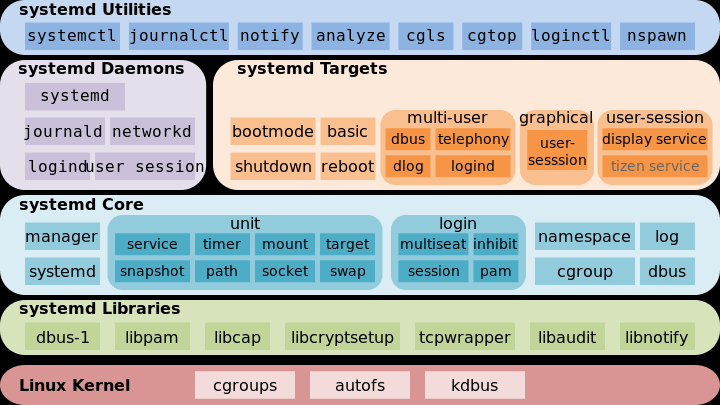
Systemd 就是为了解决这些问题而诞生的。它的设计目标是,为系统的启动和管理提供一套完整的解决方案。

根据 Linux 惯例,字母d是守护进程(daemon)的缩写。 Systemd 这个名字的含义,就是它要守护整个系统。

使用了 Systemd,就不需要再用init了。Systemd 取代了initd,成为系统的第一个进程(PID 等于 1),其他进程都是它的子进程。

Systemd 的优点是功能强大,使用方便,缺点是体系庞大,非常复杂。事实上,现在还有很多人反对使用 Systemd,理由就是它过于复杂,与操作系统的其他部分强耦合,违反”keep simple, keep stupid”的Unix 哲学。

systemctl

systemctl是 Systemd 的主命令,用于管理系统。

systemctl - Control the systemd system and service manager

1
2
3
4
5
6
7
8
9
systemctl is-enabled servicename.service #查询服务是否开机启动
systemctl enable *.service #开机运行服务
systemctl disable *.service #取消开机运行
systemctl start *.service #启动服务
systemctl stop *.service #停止服务
systemctl restart *.service #重启服务
systemctl reload *.service #重新加载服务配置文件
systemctl status *.service #查询服务运行状态
systemctl --failed #显示启动失败的服务

实操

1
2
3
4
5
6
7
8
9
10
11
12
# 查看相关unit
shaojiemike@tsjNas:~$ systemctl|grep wg
pkg-wg-quick@wg0.service
loaded active exited WireGuard via wg-quick(8) for wg0

# 查看已经启动的服务
systemctl list-unit-files --state=enabled|grep wg
pkg-wg-quick@.service enabled //由于我删除了wg0,所以.service前没wg0

# 删除服务
sh-4.4# systemctl disable pkg-wg-quick@.service
Removed symlink /etc/systemd/system/syno-low-priority-packages.target.wants/pkg-wg-quick@wg0.service.

开机启动原理

Systemd 默认从目录/etc/systemd/system/读取配置文件。但是,里面存放的大部分文件都是符号链接,指向目录/usr/lib/systemd/system/,真正的配置文件存放在那个目录。

systemctl enable命令用于在上面两个目录之间,建立符号链接关系。

1
2
3
$ sudo systemctl enable clamd@scan.service
# 等同于
$ sudo ln -s '/usr/lib/systemd/system/clamd@scan.service' '/etc/systemd/system/multi-user.target.wants/clamd@scan.service'

如果配置文件里面设置了开机启动,systemctl enable命令相当于激活开机启动。

与之对应的,systemctl disable命令用于在两个目录之间,撤销符号链接关系,相当于撤销开机启动。

1
> $ sudo systemctl disable clamd@scan.service

配置文件的后缀名,就是该 Unit 的种类,比如sshd.socket。如果省略,Systemd 默认后缀名为.service,所以sshd会被理解成sshd.service

实例

把程序设置systemctl服务,并开机启动

  1. Systemd 默认从目录/etc/systemd/system/读取配置文件。但是,里面存放的大部分文件都是符号链接,指向目录/usr/lib/systemd/system/,真正的配置文件存放在那个目录。
  2. 进入目录/usr/lib/systemd/system,修改webhook.service
1
2
3
4
5
6
7
8
9
[Unit]
Description=Webhook receiver for GitHub

[Service]
Type=simple
ExecStart=/usr/local/bin/webhook

[Install]
WantedBy=multi-user.target
1
2
systemctl start nexus.service  #启动服务
systemctl enable nexus.service #设置开机启动

Loaded: loaded (/etc/systemd/system/webhook.service; enabled;这个enabled就是开机启动的意思

查看服务的log

journalctl - Query the systemd journal

1
2
3
4
# root @ snode0 in /etc/systemd/system [17:57:48]
$ journalctl -u webhook.service
-- Logs begin at Mon 2022-06-06 15:54:50 CST, end at Tue 2022-06-28 17:57:50 CST. --
Jun 28 17:30:53 snode0 systemd[1]: Started Webhook receiver for GitHub.

问题

1
2
3
4
5
6
7
8
9
10
$ systemctl reload webhook.service
==== AUTHENTICATING FOR org.freedesktop.systemd1.manage-units ===
Authentication is required to reload 'webhook.service'.
Multiple identities can be used for authentication:
1. Jun Shi (shijun)
2. Shaojie Tan (shaojiemike)
Choose identity to authenticate as (1-2): 2
Password:
==== AUTHENTICATION COMPLETE ===
Failed to reload webhook.service: Job type reload is not applicable for unit webhook.service.

Simple 类型不能reload

参考文献

https://blog.csdn.net/qq_40741855/article/details/104984071

https://www.ruanyifeng.com/blog/2016/03/systemd-tutorial-commands.html

Nvidia Nsight

Nsight system compute & Graph 的关系

Nsight Systems

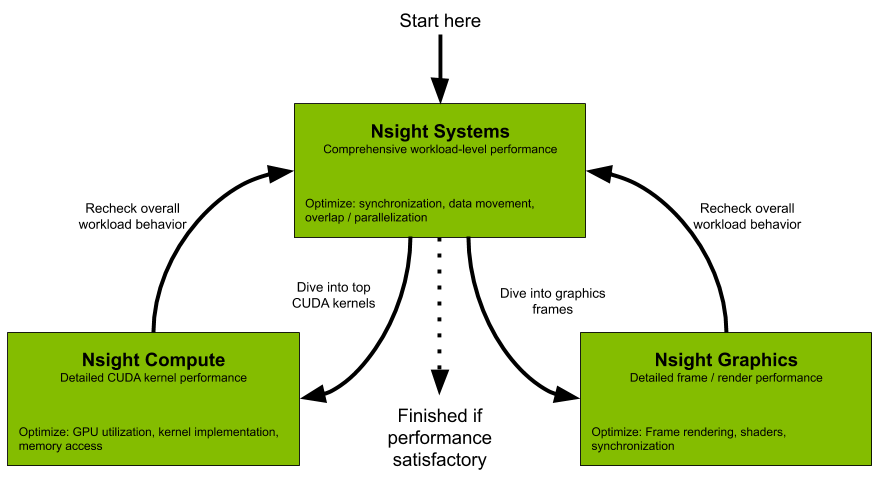
All developers should start with Nsight Systems to identify the largest optimization opportunities. Nsight Systems provides developers a system-wide visualization of an applications performance. Developers can optimize bottlenecks to scale efficiently across any number or size of CPUs and GPUs; from large servers to our smallest SoC. For further optimizations to compute kernels developers should use Nsight Compute or to further optimize a graphics workloads, use Nsight Graphics.

Nsight Compute

Nsight Compute is an interactive kernel profiler for CUDA applications. It provides detailed performance metrics and API debugging via a user interface and command line tool. Nsight Compute also provides customizable and data-driven user interface and metric collection that can be extended with analysis scripts for post-processing results.

Nsight Graphics

Nsight Graphics is a standalone application for the debugging, profiling, and analysis of graphics applications on Microsoft Windows and Linux. It allows you to optimize the performance of your Direct3D 11, Direct3D 12, DirectX Raytracing 1.1, OpenGL, Vulkan, and KHR Vulkan Ray Tracing Extension based applications.

Install Nsight local

  1. check the perf config To collect thread scheduling data and IP (instruction pointer) samples
    1. cat /proc/sys/kernel/perf_event_paranoid
    2. 如果大于2,临时改变 sudo sh -c 'echo 2 >/proc/sys/kernel/perf_event_paranoid'重启会重置
    3. 永久修改 sudo sh -c 'echo kernel.perf_event_paranoid=2 > /etc/sysctl.d/local.conf'
  2. 下载Nsight
    1. 但是单独下载要会员
    2. 下载cuda toolkit,有集成

Nsight System

目标与功能

运行 nsight-sys,可以从整体上看GPU,CPU资源的使用情况,和分辨出热点函数和kernel,但是对于为什么是热点给不出具体分析。

基本使用

勾选了CUDA-trace, GPU Metrics选项

GPU Metrics 需要 sudo

否则会报错。一般情况下使用sudo能保证0 error

1
2
3
4
5
GPU Metrics [0]: The user running Nsight Systems does not have permission to access NVIDIA GPU Performance Counters on the target device. For more details, please visit https://developer.nvidia.com/ERR_NVGPUCTRPERM
- API function: NVPW_GPU_PeriodicSampler_GetCounterAvailability(&params)
- Error code: 17
- Source function: static std::vector<unsigned char> QuadDDaemon::EventSource::GpuMetricsBackend::Impl::CounterConfig::GetCounterAvailabilityImage(uint32_t)
- Source location: /dvs/p4/build/sw/devtools/Agora/Rel/DTC_F/QuadD/Target/quadd_d/quadd_d/jni/EventSource/GpuMetricsBackend.cpp:609

Profile 速度

大致2到3倍时间:默认采样率,单独运行52s, Nsight-sys模拟需要135s。

HPC APP : PCIE, GPU DRAM Bandwidth, Warp

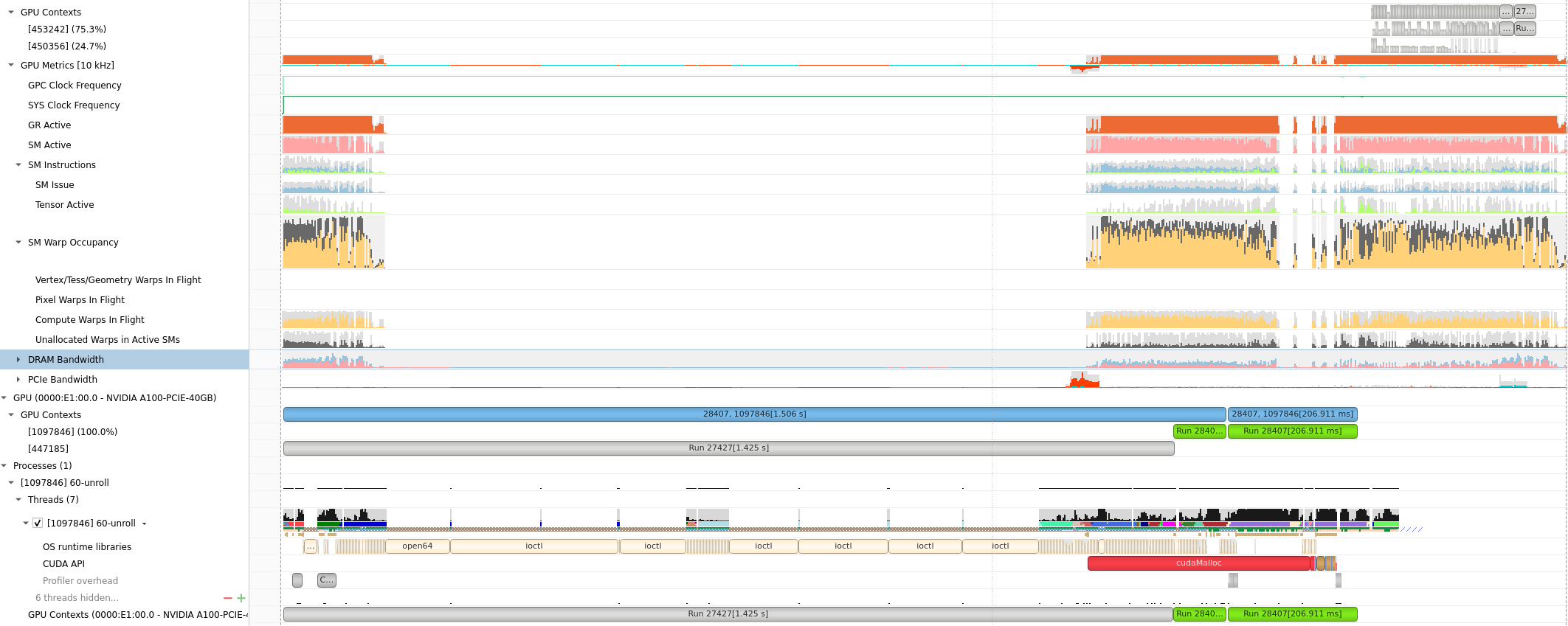
GPU Metrics选项能看出 PCIE, GPU DRAM Bandwidth, Warp的使用情况。

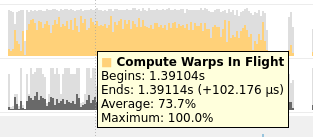
Compute Warps in Flight

将鼠标放在上面会有具体的数值或者名称的解释,(正在使用的Warps)


Unallocated Warps in Active SMs

  • Definition: This metric represents the number of warps that are not actively executing but are assigned to an active Streaming Multiprocessor (SM).
  • Interpretation: In CUDA, SMs are the fundamental processing units on the GPU. Each SM can execute multiple warps concurrently. “Unallocated Warps in Active SMs” indicates the number of warps that are ready to be scheduled on an SM but are currently waiting due to resource contention or other factors. A high number may suggest that there is room for additional work but available resources are not fully utilized.

NVTX

由于没有根据kernel function区分,很难读。为此提供了NVTX来给代码打标签

The NVIDIA Tools Extension Library (NVTX)

使用NVTX可以在C代码里插入标记,使得Nvsight能有效监控区域代码。

头文件:[^1]

1
#include <nvToolsExt.h>

需要标记代码前后加入:

1
2
3
4
nvtxRangePush("checkResult"); //nvtxRangePushA,nvtxRangePushW,nvtxRangePushEx 好像都差不多
checkResult<<<dim3(row_num / TPBX, col_num / TPBY, 1), dim3(TPBX, TPBY, 1)>>>(row_num, col_num, result);
cudaDeviceSynchronize();
nvtxRangePop();

注意NVTX是作用在CPU线程上的,无法在GPU里用。

注意需要 g++ -o testnv -I/usr/local/cuda/include -L/usr/local/cuda/lib64 -lnvToolsExt testnv.cpp。或者修改cmake来实现同样的效果

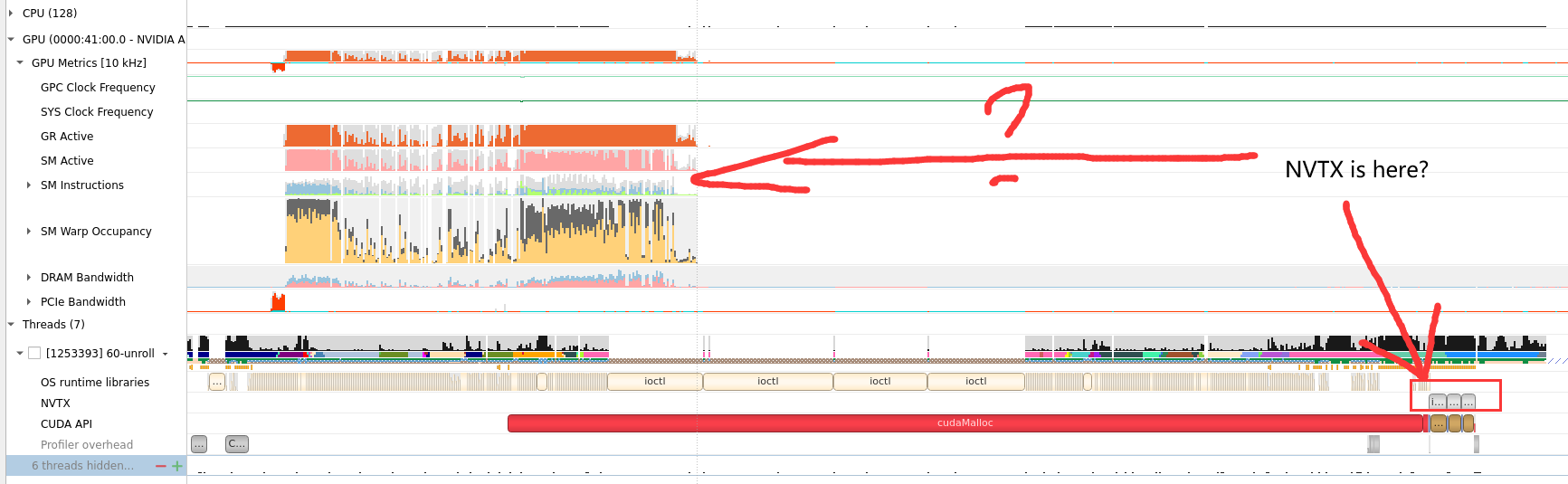
NVTX问题:怎么不在同一竖直方向上?GPU还先跑是什么情况[^2]

AI APP: Stable Diffusion XL

具体分析见 Deploy Stable Diffusion to A100

Nsight Compute

  • Nsight Systems 就是nvprof的继任者,NVIDIA最新的用于监测 kernel timeline的工具。
  • NVIDIA 计算能力7.5及以上的GPU设备(从A100开始)不再支持nvprof工具进行性能剖析,提示使用Nsight Compute作为替代品.

目标与功能

默认kernel模式,会根据 function的调度关系,将程序划分为kernel

  1. Summary: 给出in-order执行的每个kernel的参数,时间,资源占用(寄存器,计算访存单元)信息。
    1. Detail: 对于被选择的kernel给出, NV的优化建议
    2. Source:对于被选择的kernel给出, 给出源代码

基本使用

1
2
3
# recommand running under sudo
ncu # 命令行 Nsight Compute CLI(ncu)
ncu-ui # GUI

Profile速度

目测模拟时间慢百倍。

使用Nsight Compute CLI (nv-nsight-cu-cli / ncu) 输出数据

nv-nsight-cu-cli -> ncu

下面是一个使用样例:

1
/usr/local/NVIDIA-Nsight-Compute/nv-nsight-cu-cli -o mnist -f --csv --profile-from-start off /usr/bin/python3 mnist.py

其中-o是为了输出.nsight-cuprof-report文件用于后续的可视化查看,-f为强制覆盖原有文件,–csv可是在console输出除 timeline 以外数据的时候以逗号分隔数据,方便拷贝至csv文件, –profile-from-start的使用方法和Nsight System以及nvprof一样。其余flag选项可见文档

上面的例子会生成mnist.nsight-cuprof-report文件。

注意

最前面的可执行文件需要绝对路径,如上面的python3需要使用 /usr/bin/python3。
生成过程中可能会产生很大的临时文件(几十G)。如果本次磁盘空间不够,可以设置如下环境变量来调整存储临时文件的地址。没有找到能直接使用 Nsight Compute 修改临时文件地址的方式。

1
export /TMPDIR=/path/for/tmp

ncu与nvprof命令行抓取参数的映射表

https://www.freesion.com/article/34871449930/

ncu-ui教程

为了显示原代码makefile添加 -g -G选项
对应CmakeList.txt

1
2
3
target_compile_options(better PUBLIC $<$<COMPILE_LANGUAGE:CUDA>:--extended-lambda
-G -src-in-ptx
>)

https://blog.csdn.net/yan31415/article/details/109491749

ncu-ui表格&图


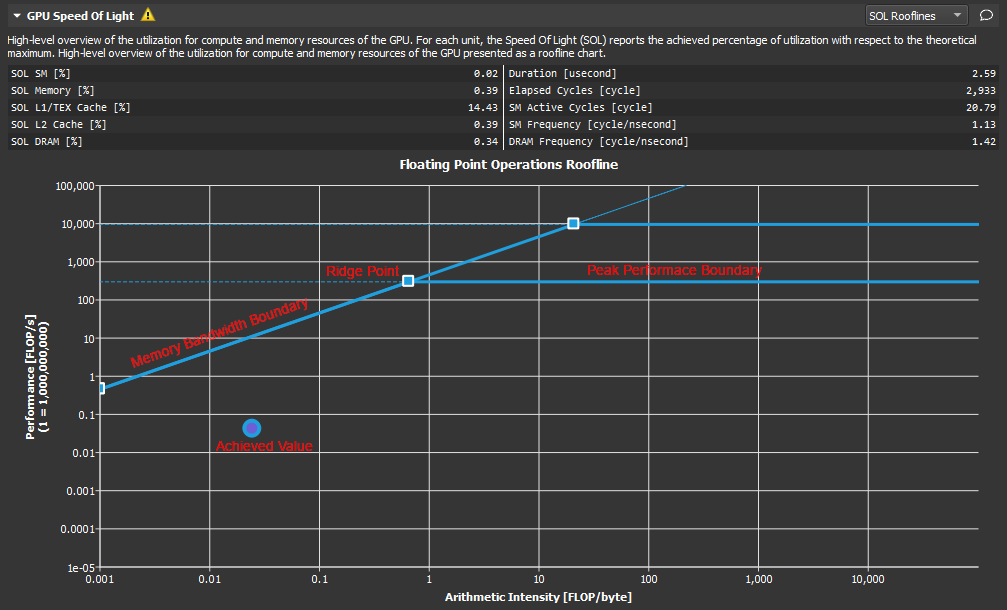
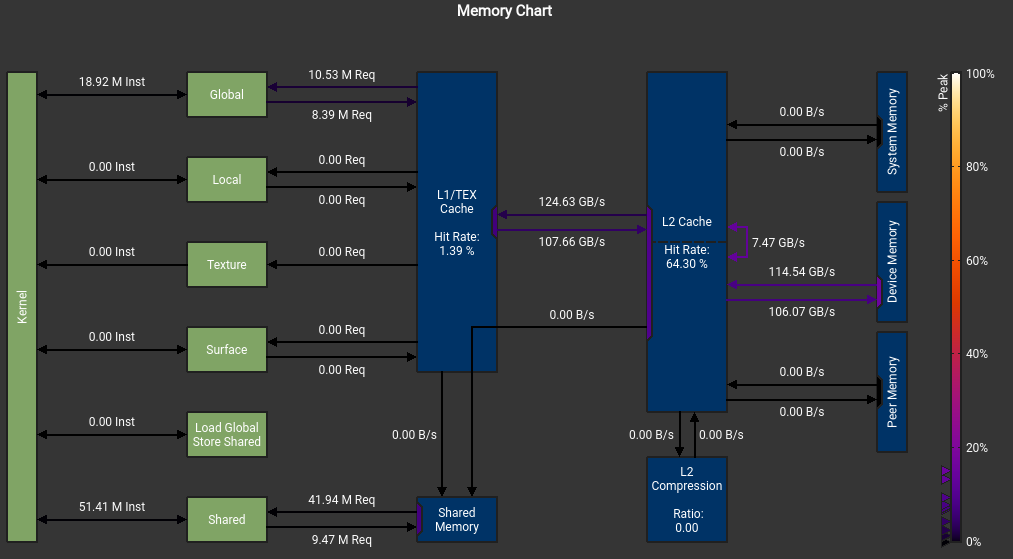
我不明白我的SMEM怎么不是从DRAM来的, 而且峰值怎么这么低?

这个错误也是令人迷惑
The memory access pattern for loads from L1TEX to L2 is not optimal. The granularity of an L1TEX request to L2 is a 128 byte cache line. That is 4 consecutive 32-byte sectors per L2 request. However, this kernel only accesses an average of 3.7 sectors out of the possible 4 sectors per cache line. Check the Source Counters section for uncoalesced loads and try to minimize how many cache lines need to be accessed per memory request.

不知道为什么有1%和2% 的bank conflict

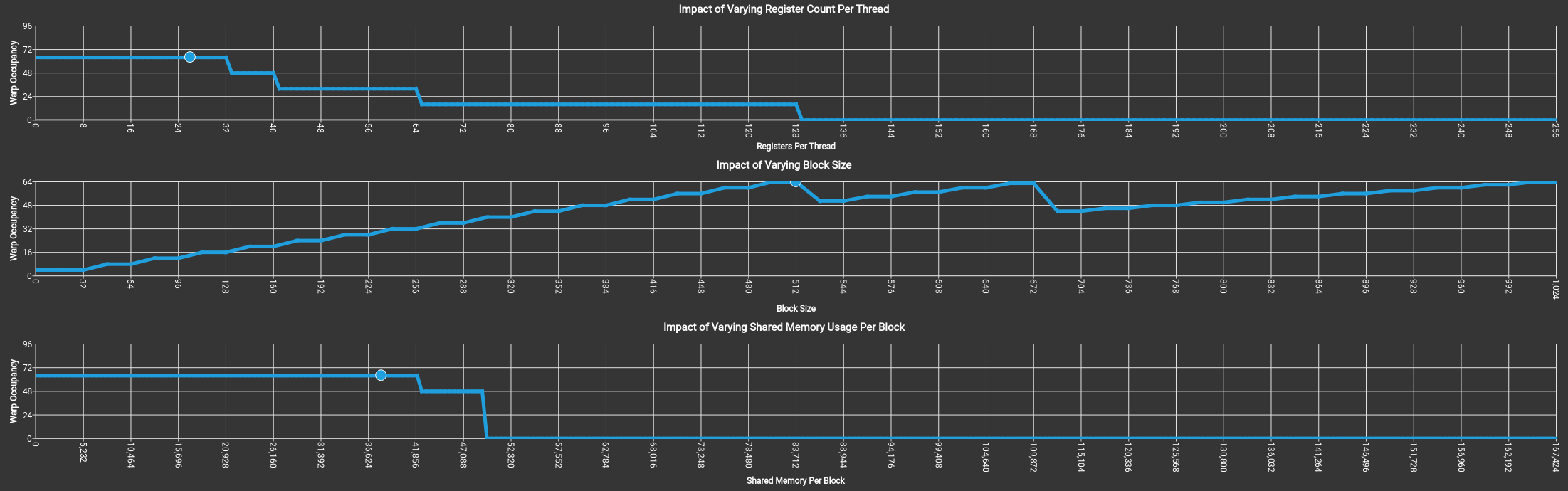
可以看到 SMEM, Register,Block Size是怎么影响GPU Warp的分配调度的。

上图没有拖累,吃满了64个warp。

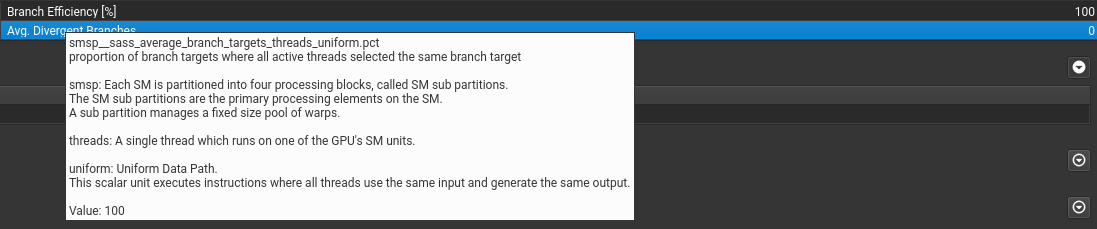
关于if语句

if语句只要warp里执行相同就行。

可以提示出不连续访问的地方。(这里是这样设计的,已经避免了绝大部分的不连续访问)

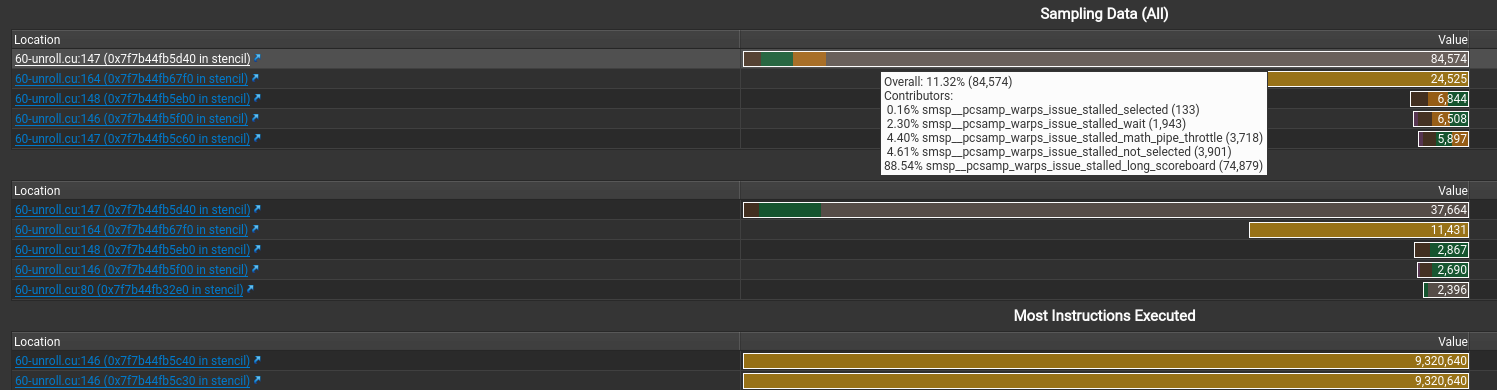
显示stall最多的指令是什么以及在等待什么。还有执行最多的指令

假如 file mismatched 手动选择文件就行

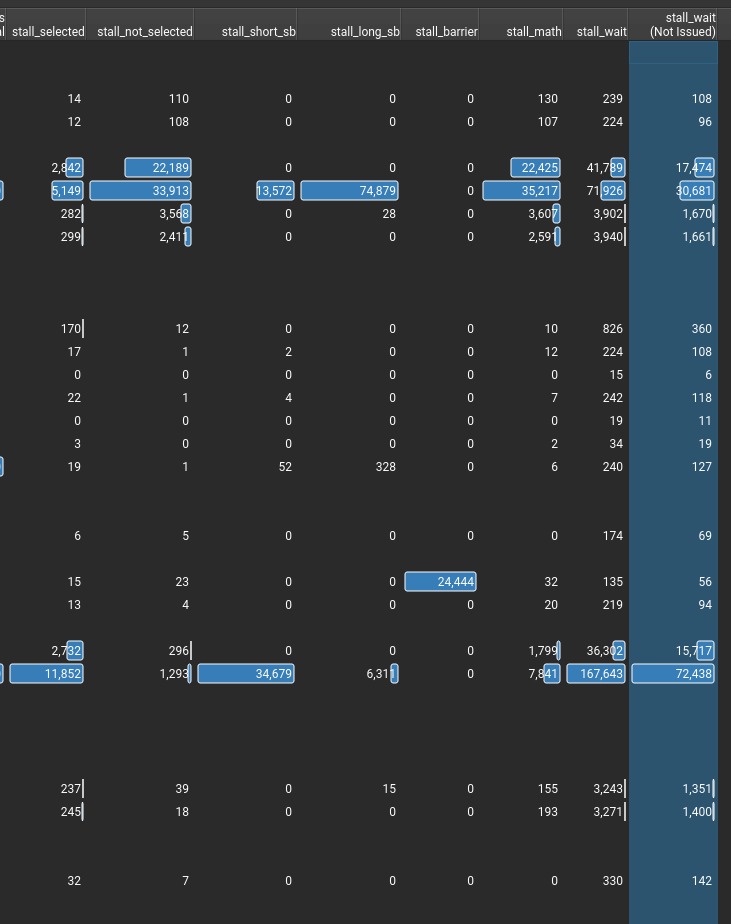
stall的信息,感觉就这些有点用。(其中sb是scoreboard的意思)

ncu-ui 分析汇编

PTX&SASS汇编说明

有两种汇编

请看PTX SASS一文

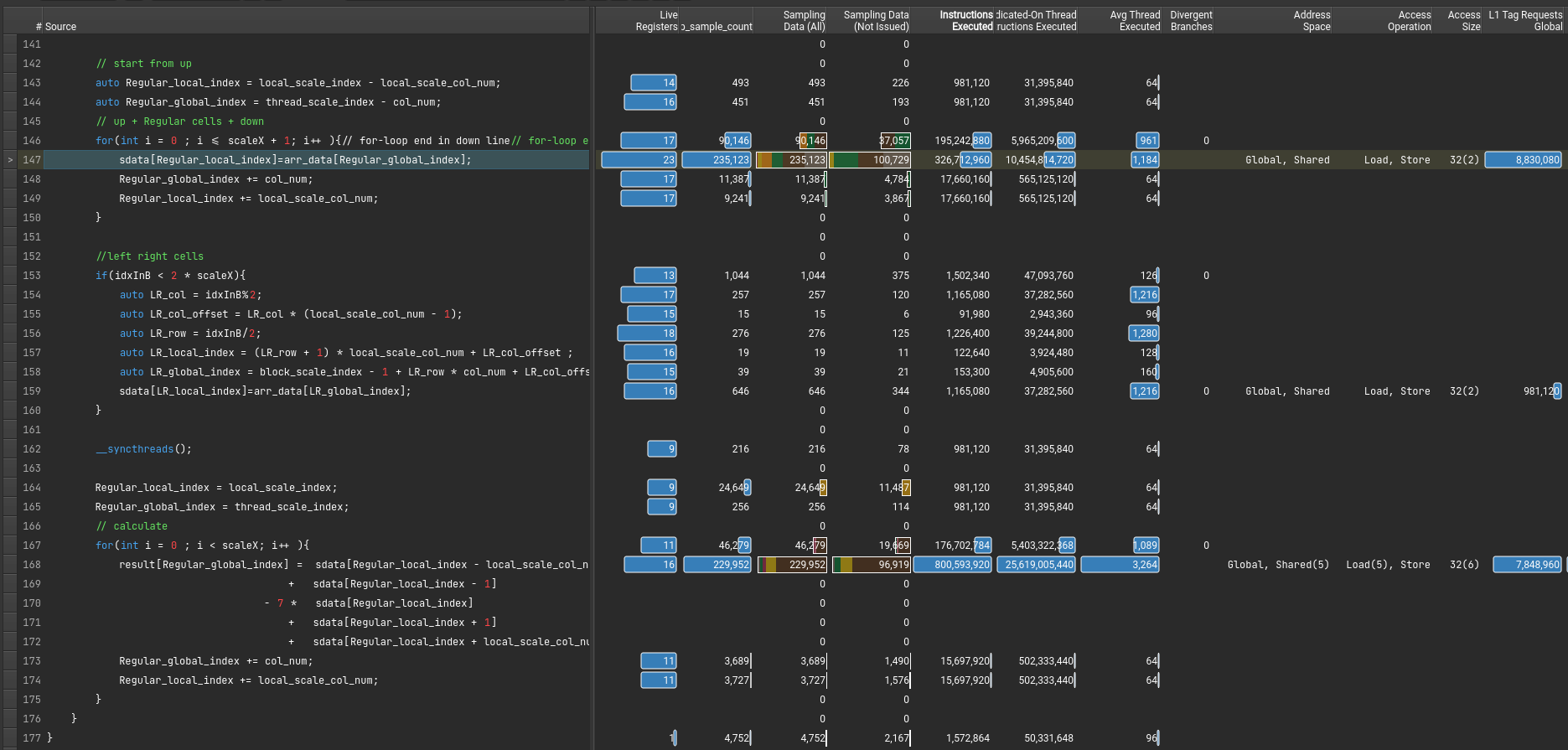
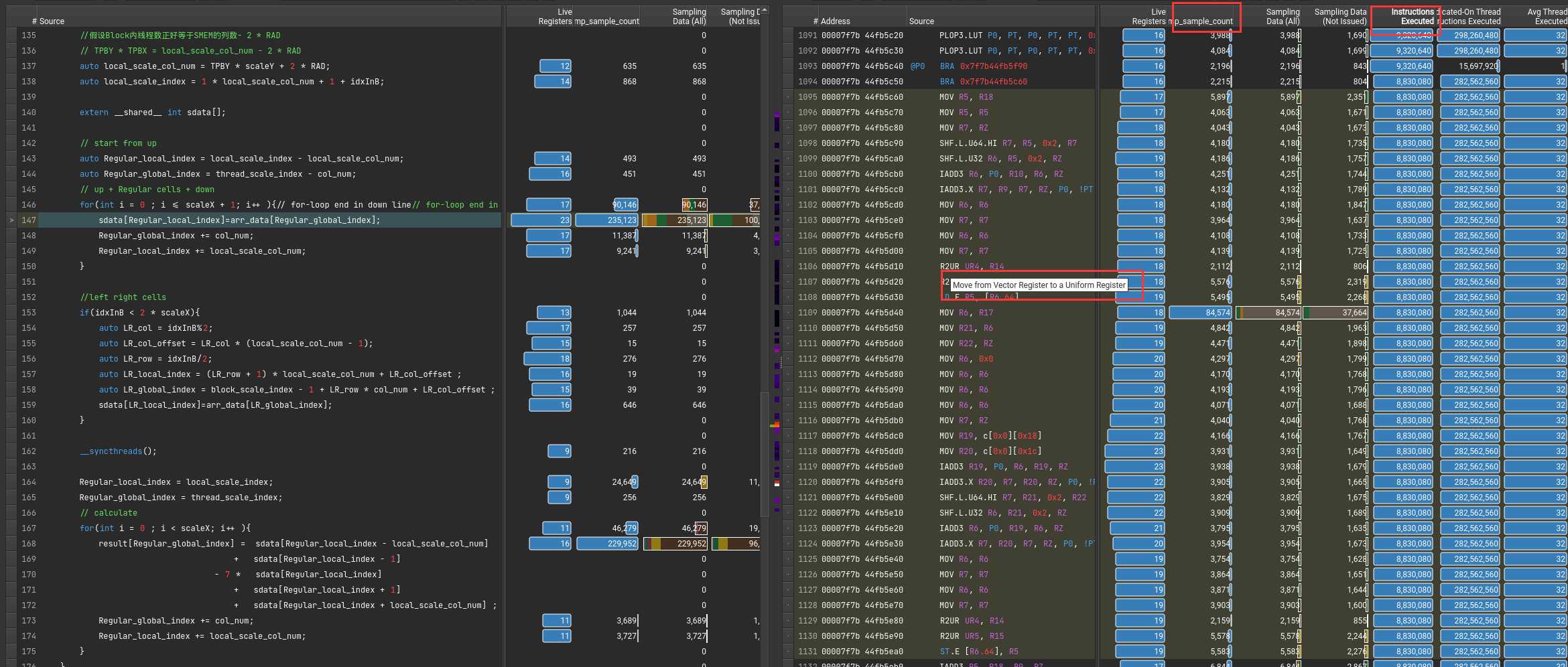
基本说明

可以通过指令执行数或者采样率来得知,执行最多的指令。

鼠标悬停可以知道具体命令的含义

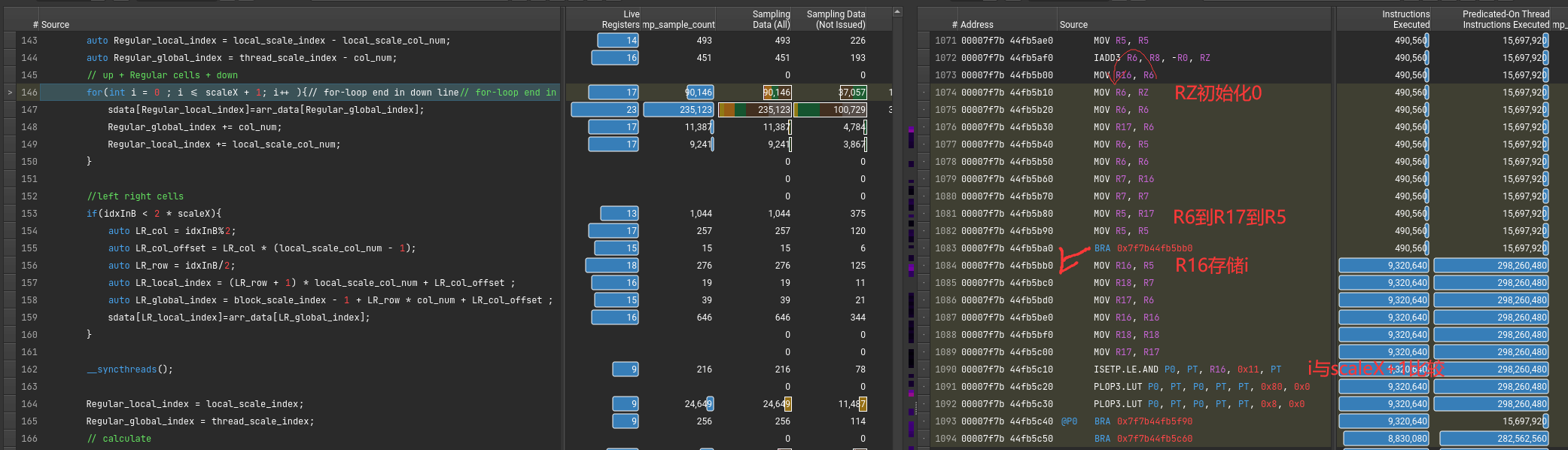
Ex1: for循环头

Ex2: for-loop kernel

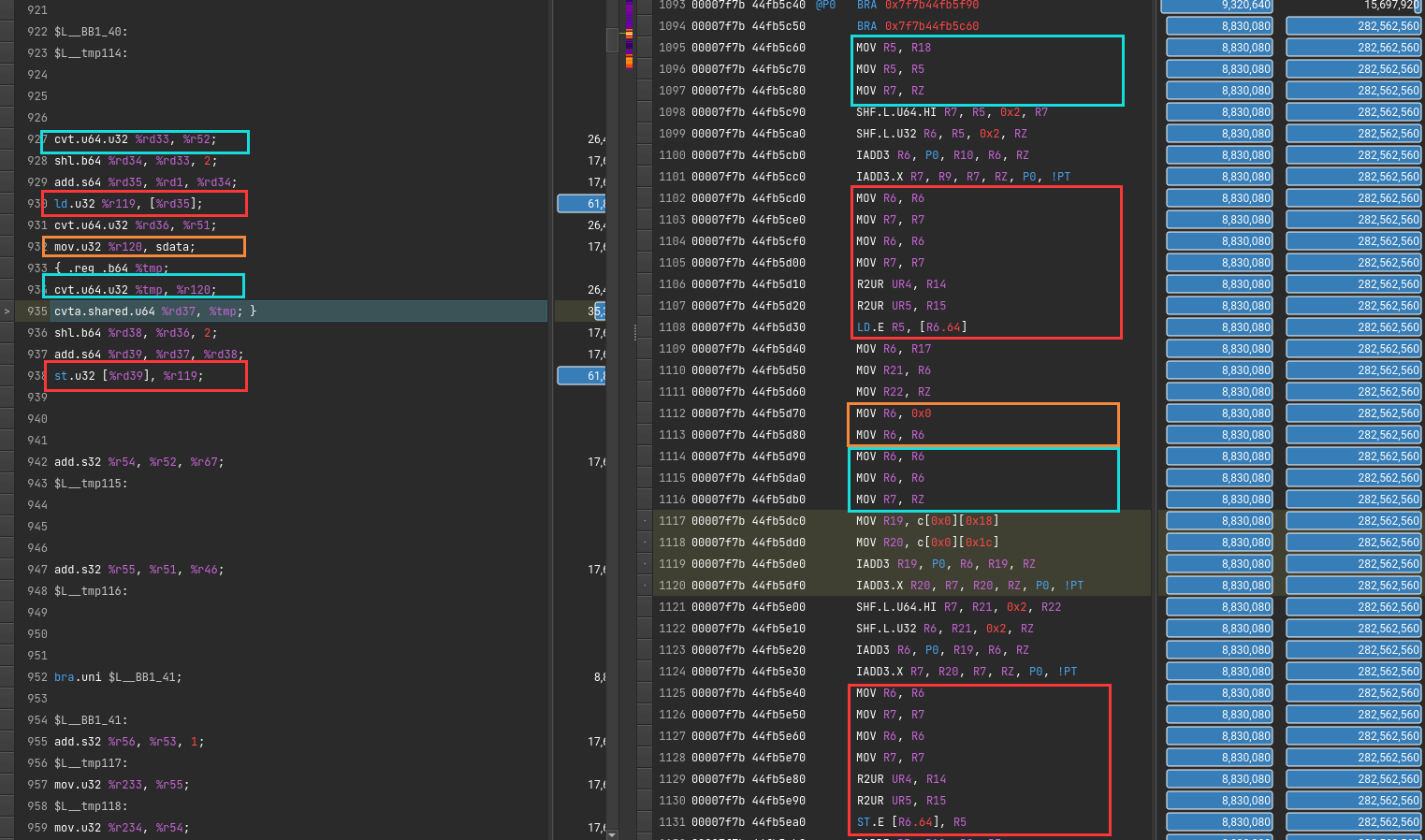
1
sdata[Regular_local_index]=arr_data[Regular_global_index];

该从DRAM里读取到SMEM的指令对应的PTX和SASS代码

1
cvt.f32.u16 d, a;   // convert 16-bit unsigned to 32-bit float

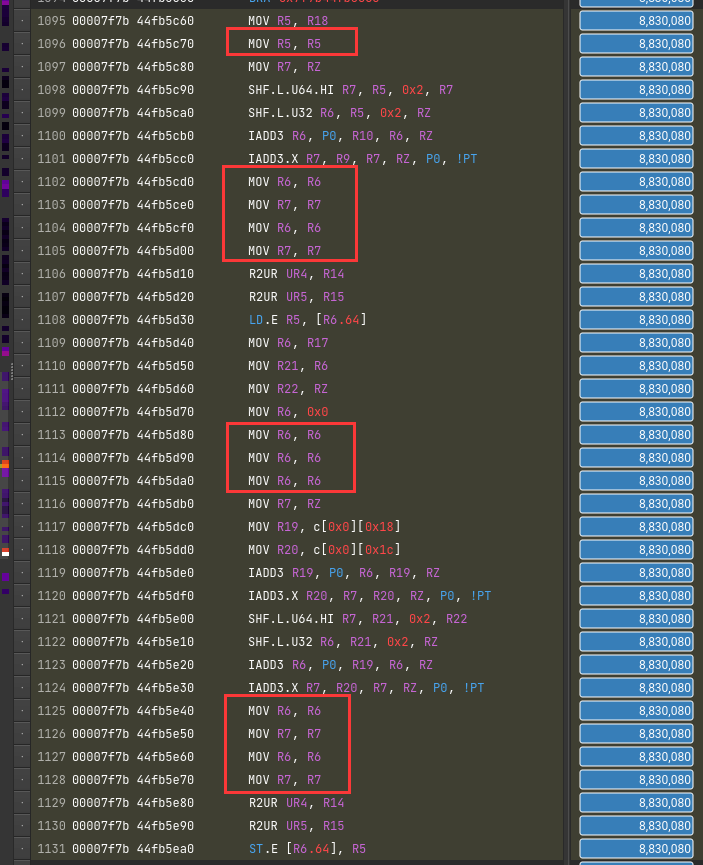
问题:无效self-mov?

为了隐藏延迟?

直接原因是PTX翻译成SASS。一条mov变多条了

CUDA Visual Profiler

老一代debugger工具,逐渐被Nsight淘汰

1
2
nvprof # 命令行,nsys 之前的名称叫做 nvprof
nvvp

在more里有建议

nvprof捕获信息存储

1
2
3
nvprof --analysis-metrics -o  nbody-analysis.nvprof ./nbody --benchmark -numdevices=2 -i=1
# 下面输出 .qdrep 文件
nsys profile --stats=true --force-overwrite=true -o baseline-report ./single-thread-vector-add

CUDA Visual Profiler 问题

==7196== Warning

解决方法在程序末尾加cudaDeviceReset()或者cudaProfilerStop()

Nsight Compute 问题

OpenGL 没有安装

1
2
3
4
5
6
Warning: Failed to get OpenGL version. OpenGL version 2.0 or higher is required.
OpenGL version is too low (0). Falling back to Mesa software rendering.
qt.qpa.plugin: Could not load the Qt platform plugin "xcb" in "" even though it was found.
This application failed to start because no Qt platform plugin could be initialized. Reinstalling the application may fix this problem.

Available platform plugins are: offscreen, wayland-egl, wayland, wayland-xcomposite-egl, wayland-xcomposite-glx, xcb.

解决办法

1
2
sudo apt-get install libxcb-xinerama0
sudo apt install libxcb-icccm4 libxcb-image0 libxcb-keysyms1 libxcb-render-util0

Qt插件缺失

1
2
3
4
5
6
7
8
9
qt.qpa.plugin: Could not load the Qt platform plugin "xcb" in "" even though it was found.
This application failed to start because no Qt platform plugin could be initialized. Reinstalling the application may fix this problem.

Available platform plugins are: xcb.

Application could not be initialized!
This is likely due to missing Qt platform dependencies.
For a list of dependencies, please refer to https://doc.qt.io/qt-5/linux-requirements.html
To view missing libraries, set QT_DEBUG_PLUGINS=1 and re-run the application.

按照说明 export QT_DEBUG_PLUGINS=1再次运行, 显示具体问题

1
Cannot load library /staff/shaojiemike/Install/cuda_11.7.0_515.43.04_linux/nsight-compute-2022.2.0/host/linux-desktop-glibc_2_11_3-x64/Plugins/platforms/libqxcb.so: (libxcb-xinput.so.0: cannot open shared object file: No such file or directory)

解决 sudo apt-get install libxcb-xinput0

kernel没权限profile

ERR_NVGPUCTRPERM - The user does not have permission to profile on the target device

要用sudo,或者最新的NV

could not connect to display localhost:10.0 under sudo

1
2
3
4
5
6
$ sudo ncu-ui
MobaXterm X11 proxy: Authorisation not recognised
qt.qpa.xcb: could not connect to display localhost:10.0

MobaXterm X11 proxy: Unsupported authorisation protocol
Error: Can't open display: localhost:10.0

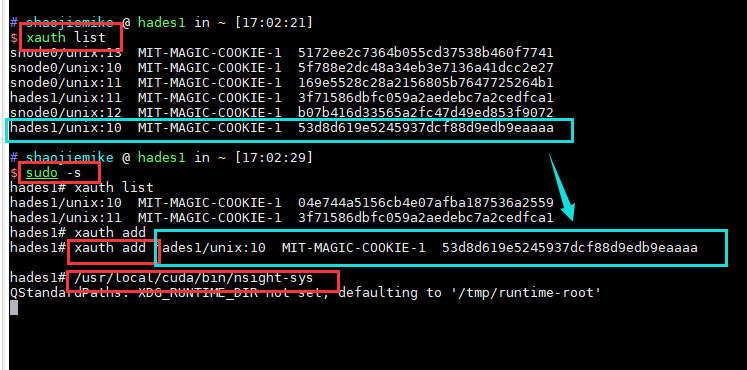
解决办法(原因是sudo相当于切换到root用户,丢失了xauth信息)

1
2
3
4
5
6
7
8
9
10
$ xauth list
snode0/unix:12 MIT-MAGIC-COOKIE-1 84941f1f8be97d19436356685f75b884
snode0/unix:13 MIT-MAGIC-COOKIE-1 5172ee2c7364b055cd37538b460f7741
snode0/unix:11 MIT-MAGIC-COOKIE-1 589f3b5ab852f24ca3710c53e6439260
hades1/unix:10 MIT-MAGIC-COOKIE-1 9346adec202bd65250f3d21239025750
snode0/unix:10 MIT-MAGIC-COOKIE-1 52285c563f1688741fa1b434ed2b7b2c

sudo -s # 切换
xauth add snode0/unix:10 MIT-MAGIC-COOKIE-1 52285c563f1688741fa1b434ed2b7b2c # 补全xauth
# 正常执行 xauth有用的总是最后一个

GPU Metrics [0]: Sampling buffer overflow.

  1. 只勾选CUDA Metrics 和 GPU Metrics
  2. 降低采样频率

Error 0: UnsupportedGpu

原因是 软件对GPU的支持是逐步的需要安装最新的。

不支持的Nsight的可以尝试老的debugger工具 CUDA Visual Profiler

Error: Profiling is not supported on this device

Pascal support was deprecated, then dropped from Nsight Compute after Nsight Compute 2019.5.1.

The profiling tools that support Pascal in the CUDA Toolkit 11.1 and later are nvprof and visual profiler.

需要进一步的研究学习

暂无

遇到的问题

NVTX问题

开题缘由、总结、反思、吐槽~~

参考文献

https://developer.nvidia.com/tools-overview

https://www.365seal.com/y/zyn1yxJQn3.html

[^1]: Usage of NVTX

TinyMediaManager

docker-compose in Portainer

使用github的版本

1
2
3
4
5
6
7
8
9
10
11
12
13
14
15
tinymediamanager_service:
image: romancin/tinymediamanager:latest
container_name: tinymediamanager
ports:
- 5803:5800
environment:
- USER_ID=0
- GROUP_ID=0
- PASSWORD=acsa1411
- TZ=Europe/Madrid
- VNC_PASSWORD=password #建议去除
volumes:
- /bt:/bt
- /share/Container/tinymediamanager:/config:rw
- /share/Container/tinymediamanager/media:/media:rw

VNC 网页默认密码 password

口口字体问题

进入容器内bash,安装字体

1
2
3
4
docker exec -it  tinymediamanager bash
wget https://mirrors.aliyun.com/alpine/edge/testing/x86_64/font-wqy-zenhei-0.9.45-r2.apk
apk add --allow-untrusted font-wqy-zenhei-0.9.45-r2.apk
# fc-list 查看字体

然后先将字体改成最后几个, 然后再改语言。

然后restart容器。注意不是重启stack(会删除容器,重启创建

tmm on Windows

利用网络挂载文件夹,用tMM软件刮削.

要注意动漫属于电视剧

多季度动漫管理

基础命名规则如下:

1
2
3
4
5
6
7
8
9
10
11
12
13
剧集英文名 (上映年份)/这是文件夹
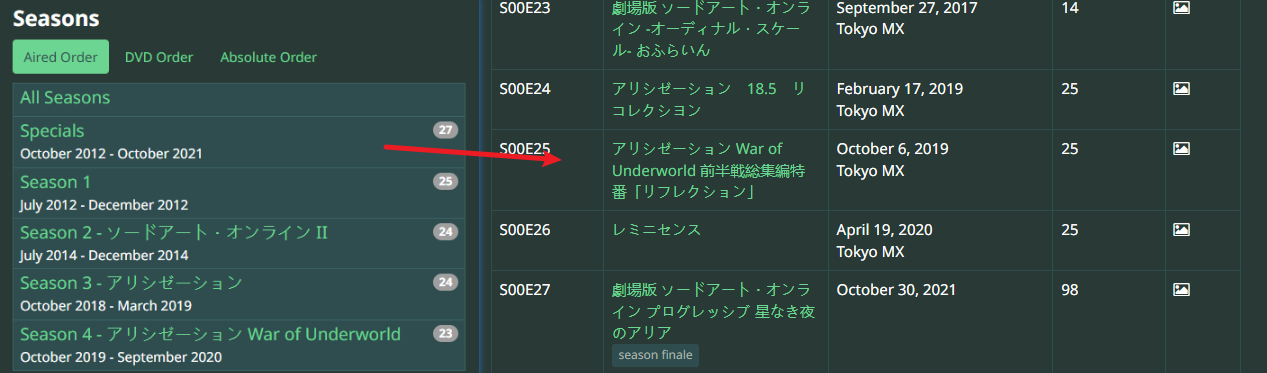
---Specials /这是文件夹,存放OVA,特典,剧场版之类
------剧集英文名 S00E01.mp4
------剧集英文名 S00E02.mp4
------......
---Season 01 /这是文件夹,有几季就建几个文件夹
------剧集英文名 S01E01.mp4
------......
---Season 02 /同上
------剧集英文名 S02E01.mp4
------剧集英文名 S02E02.mp4
------......

其中Specials里,视频文件后的S00表示这是“特典”,后面的E01代表“第几个特典”。

请根据TheTVDB里的数据确定你的ova视频的编号。

问题

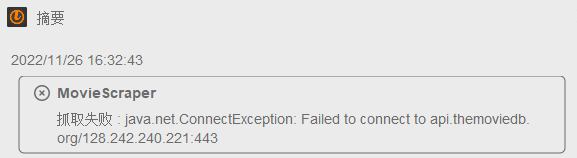
DNS索引网站查看域名的中国服务器IP地址

实际ping速度,修改win10的hosts文件在C:\WINDOWS\system32\drivers\etc

需要进一步的研究学习

暂无

遇到的问题

暂无

开题缘由、总结、反思、吐槽~~

参考文献

https://www.bilibili.com/read/cv18956570/

Docker

简介

基于 Go 语言 并遵从 Apache2.0 协议开源。Docker 可以让开发者打包他们的应用以及依赖包到一个轻量级、可移植的容器中,然后发布到任何流行的 Linux 机器上。

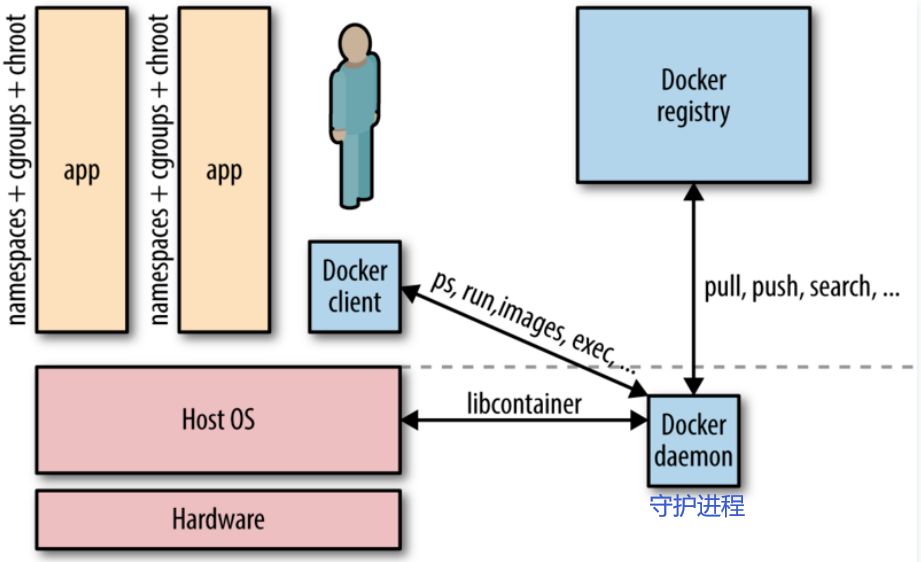
structure

Docker vs VMWare

相对于传统虚拟机,Docker 没有硬件虚拟化/hypervisor,可以运行在物理机、虚拟机, 甚至嵌套运行在 Docker 容器内,并且其不携带操作系统的,会轻巧很多。而且调用资源时利用 Docker Engine 去调用宿主的的资源,这时候过程是虚拟内存->真正物理内存。

Image title{ align=left }

Image title2{ align=right }

Linux内核的潜在兼容性问题

how docker run different ubuntu version Sharing the same running kernel? no SW conficts?

If your host kernel is “compatible enough“ with the software in the container you want to run it will work; otherwise, it won’t.[^1] So what does “compatible enough” mean? It depends on what requests the program makes of the kernel (system calls) and** what features it expects the kernel to support**. Some programs make requests that will break things; others don’t.

Compatibility

on an Ubuntu 18.04 (kernel 4.19) or similar host:[^1]
docker run centos:7 bash works fine.
docker run centos:6 bash fails with exit code 139, meaning it terminated with a segmentation violation signal; this is because the 4.19 kernel doesn’t support something that that build of bash tried to do.
docker run centos:6 ls works fine because it’s not making a request the kernel can’t handle, as bash was.
If you try docker run centos:6 bash on an older kernel, say 4.9 or earlier, you’ll find it will work fine.

Portainer 统一管理

  • 安装Portainer Community Edition (CE)而不是Portainer Business Edition (BE)
  • WSL的安装和linux类似
    1
    2
    3
    4
    5
    # 创建 Portainer Server 将用于存储其数据库的卷
    docker volume create portainer_data

    # 下载并安装 Portainer Server 容器, 9000为WebUI端口, 8000 是可选的,仅当您计划将边缘计算功能与边缘代理一起使用时才需要。
    docker run -d -p 8000:8000 -p 9000:9000 --name portainer --restart=always -v /var/run/docker.sock:/var/run/docker.sock -v /portainer_data:/data portainer/portainer-ce:2.11.1
  • Portainer里的docker部署: 建议使用 Stacks 下的 docker-compose 来进行

端口映射

2333:8000 为 容器内部端口8000,宿主机端口为2333

远程WebUI访问

默认部署在 http://localhost:9000, 可以如下操作来部署 http://222.195.72.218:9000/#!/home

1
2
3
# docker在服务器上时,可以关闭防火墙访问,也可以ssh代理到本地
brainiac1# ufw status
Status: inactive

Install

1
2
3
4
5
6
7
8
# 安裝 docker
curl -sSL get.docker.com | sh
# 將目前使用者新增到 docker 群組內,需要重新登入才會生效
sudo usermod -aG docker $USER

# 安裝 docker-compose
sudo curl -L "https://github.com/docker/compose/releases/download/$(curl -sL https://api.github.com/repos/docker/compose/releases/latest | grep tag_name | cut -d'"' -f 4)/docker-compose-$(uname -s)-$(uname -m)" -o /usr/local/bin/docker-compose
sudo chmod +x /usr/local/bin/docker-compose

Relationship

![dockerTripleThing](https://www.markbuckler.com/img/docker_high_level.png)
Dockerfile & Image & Container
  • Image like a static configed/compiled software using dockerfile/gcc.
  • And container is a running process that we can control.

Dockerfile

First, write an installation script for all of your dependencies. This script is written with Docker specific syntax and is called a Dockerfile(1).
{ .annotate }

  1. A Dockerfile is a script used to create a Docker image, which is a lightweight, standalone, and executable package that includes everything needed to run a piece of software, including the code, runtime, system tools, system libraries, and settings.
![Building image using Dockerfile](https://iximiuz.com/you-need-containers-to-build-an-image/kdpv.png)
Building image using Dockerfile

Using dockerfile in portainer

`Images > Build image`

Dockerfile

Here’s a simple Dockerfile code snippet(it’s usually built on official base image):

1
2
3
4
5
6
7
8
9
10
11
12
13
14
15
16
17
18
19
20
21
22
23
# Use an official base image
FROM ubuntu:20.04

# Set environment variables
ENV MY_ENV_VARIABLE my_value

# Run commands to install packages and set up the environment
RUN apt-get update && apt-get install -y \
package1 \
package2 \
&& rm -rf /var/lib/apt/lists/*

# Copy files from your local machine to the container
COPY local_directory /container_directory

# Set the working directory
WORKDIR /app

# Expose a port
EXPOSE 8080

# Define the command to run when the container starts
CMD ["command_to_start_application"]

In this example, and more options:

  • FROM specifies the base image, in this case, Ubuntu 20.04.
  • ENV sets an environment variable.
  • RUN executes commands to install packages.
  • COPY copies files from your local machine to the container.
  • WORKDIR sets the working directory within the container.
  • EXPOSE specifies that the container will listen on port 8080.
  • CMD defines the command that will be executed when the container starts.

Cheat Sheet

查看容器出错日志:docker logs --tail 1000 1fed0d4782cf最后一项是容器ID

换源

24年6月后国内镜像站按照国家要求已经陆续关闭,还是只能挂代理

使用docker info可以查看到文件保存路径,和是否有换源:

1
2
root@UGREEN-A0E9:~# docker info|grep Registry
Registry: https://index.docker.io/v1/

nano /etc/docker/daemon.json 把以下内容复制进去:

1
2
3
4
5
6
7
8
9
{
"registry-mirrors": [
"https://y0xk2hg9.mirror.aliyuncs.com",
"https://registry.hub.docker.com",
"http://hub-mirror.c.163.com",
"https://docker.mirrors.ustc.edu.cn",
"https://registry.docker-cn.com"
]
}

重启systemctl restart docker, 检查docker info

代理

在构建 Docker 镜像时,如果需要通过代理访问外部网络资源(例如,安装软件包或依赖项),你可以通过以下几种方式设置代理:

docker search ubuntu验证

单个Dockerfile

使用 –build-arg

docker build 命令中使用 --build-arg 选项,传递代理相关的环境变量。

1
2
3
4
docker build \
--build-arg http_proxy=http://your.proxy.server:port \
--build-arg https_proxy=http://your.proxy.server:port \
-t your-image-name .

在 Dockerfile 中,你需要使用 ARG 指令来声明这些构建参数,以便 Docker 在构建过程中能够使用它们:

1
2
3
4
5
6
7
ARG http_proxy
ARG https_proxy

# 继续其他 Dockerfile 指令..., 但是不能代理 From 指令
RUN xxx
COPY xxx
ADD xxx

Dockerfile 中直接设置

1
2
3
4
ENV http_proxy=http://your.proxy.server:port
ENV https_proxy=http://your.proxy.server:port

# 继续其他 Dockerfile 指令...

全局配置

在 Docker 守护进程中配置全局代理

通过配置 Docker 守护进程,在全局范围内使用代理。具体操作步骤如下:

  1. 创建或编辑 /etc/systemd/system/docker.service.d/{任意名字 e.g.,proxy}.conf 文件(对于 HTTP 代理):

    1
    2
    3
    4
    [Service]
    Environment="HTTP_PROXY=http://your.proxy.server:port"
    Environment="HTTPS_PROXY=https://your.proxy.server:port"
    Environment="NO_PROXY=localhost,127.0.0.1"
  2. 重新加载守护进程配置,并重启 Docker:

    1
    2
    sudo systemctl daemon-reload
    sudo systemctl restart docker
  3. 通过 docker build 命令构建镜像时,Docker 守护进程会自动使用配置的代理。

  4. 验证代理设置:systemctl show docker --property Environmentdocker info会显示 如下:

1
2
3
4
5
6
7
(base) root@localhost /etc/systemd/system/docker.service.d  [04:47:18]
> sudo systemctl show docker --property Environment
Environment=GOTRACEBACK=crash HTTP_PROXY=http://p_atlas:proxy%40123@90.255.207.209:8080 HTTPS_PROXY=http://p_atlas:proxy%40123@90.255.207.209:8080 NO_PROXY=localhost,127.0.0.1
(base) root@localhost /etc/systemd/system/docker.service.d [05:02:04]
> docker info |grep HTTP
HTTP Proxy: http://xxxxx:xxxxx@90.255.207.209:8080
HTTPS Proxy: http://xxxxx:xxxxx@90.255.207.209:8080

docker show没有 HTTP_PROXY, 看日志

sudo journalctl -u docker.service 检查 代理环境变量为什么没生效

1
2
3
Dec 30 16:32:59 localhost.localdomain systemd[1]: Started Docker Application Container Engine.
Dec 30 16:33:12 localhost.localdomain systemd[1]: /etc/systemd/system/docker.service.d/http-proxy.conf:2: Failed to resolve specifiers in HTTP_PROXY=http://p_atlas:proxy%40123@90.255.207.209:6688, ignoring: Invalid slot
Dec 30 16:33:12 localhost.localdomain systemd[1]: /etc/systemd/system/docker.service.d/http-proxy.conf:3: Failed to resolve specifiers in HTTPS_PROXY=http://p_atlas:proxy%40123@90.255.207.209:6688, ignoring: Invalid slot

发现还是转义符的问题,%40123 要写成 %%40123

使用 ~/.docker/config.json

你还可以在 ~/.docker/config.json 文件中配置代理:

1
2
3
4
5
6
7
8
9
{
"proxies": {
"default": {
"httpProxy": "http://your.proxy.server:port",
"httpsProxy": "https://your.proxy.server:port",
"noProxy": "localhost,127.0.0.1"
}
}
}

通过这些方法,你可以在 docker build 命令中使用代理,从而在需要外部网络资源的场景下顺利构建 Docker 镜像。

证书问题

Error response from daemon

https://ghcr.io/v2/“: x509: certificate signed by unknown authority”

编辑 Docker 配置文件 /etc/docker/daemon.json,添加以下内容:

1
2
3
{
"insecure-registries": ["ghcr.io"]
}
重启 Docker 服务:
1
sudo systemctl restart docker

image

1
2
3
4
5
6
7
8
9
10
# load image from zip
docker load -i <image.tar>

# save current container to image
docker commit containerid image_name:tag

# save image to zip
docker save myimage:latest | gzip > myimage.tar.gz
# save all
docker save $(docker images -q) | gzip > all-images.tar.gz

docker push/pull

  • It is in these containers that you will run or develop your code.
  • If you would like other people to be able to use your Docker image you can push to DockerHub (with docker push),
  • and if you want to use someone else’s image you can pull from DockerHub (with docker pull).[^4]

网络问题

1
2
3
root@UGREEN-A0E9:~# docker pull dreamacro/clash
Using default tag: latest
Error response from daemon: Get "https://registry-1.docker.io/v2/": net/http: request canceled (Client.Timeout exceeded while awaiting headers)

需要换源

docker build

Then, run these commands to build a Docker image of your environment by using docker build.

Dockfile Path

docker build 基本的格式为 docker build [ 选项 ] 路径,该命令将读取指定路径下(包括子目录)的 Dockerfile,并将该路径下所有内容发送给 Docker 服务端,由服务端来创建镜像。因此一般建议放置 Dockerfile 的目录为空目录。也可以通过 .dockerignore 文件(每一行添加一条匹配模式)来让 Docker 忽略路径下的目录和文件。

option

option like

1
2
$ sudo docker build -t myrepo/myapp /tmp/test1/
$ docker build -t username/image_name:tag_name .

docker build use proxy

1
2
3
4
5
docker build --network=host\
--build-arg http_proxy=http://127.0.0.1:7890 \
--build-arg https_proxy=http://127.0.0.1:7890 \
--build-arg "NO_PROXY=localhost,127.0.0.1,.example.com" \
-t ithemal:latest .

You also can set the proxy in the Dockerfile.[^6]

1
2
ENV http_proxy "http://127.0.0.1:7890"
ENV https_proxy "https://127.0.0.1:7890"

docker 内代理经常导致网络异常

通过下面验证代理:

  1. docker exec -it windmill-caddy-1 /bin/sh 进去 curl(受到全小写环境变量http_proxy影响) and wget
  2. docker inspect windmill-windmill_worker-1 | grep -i proxy

docker tag

镜像的完整 tag 不仅包含镜像名字, 还指明了镜像从哪里来, 要到哪里去, 就像一个 URL。可以通过 -t 选项指定镜像的标签信息,譬如:

1
$ docker tag SOURCE_IMAGE[:TAG] TARGET_IMAGE[:TAG]

docker run

Once successfully built, you can instantiate copies of this image as many times as you would like by using docker run to create Docker containers.

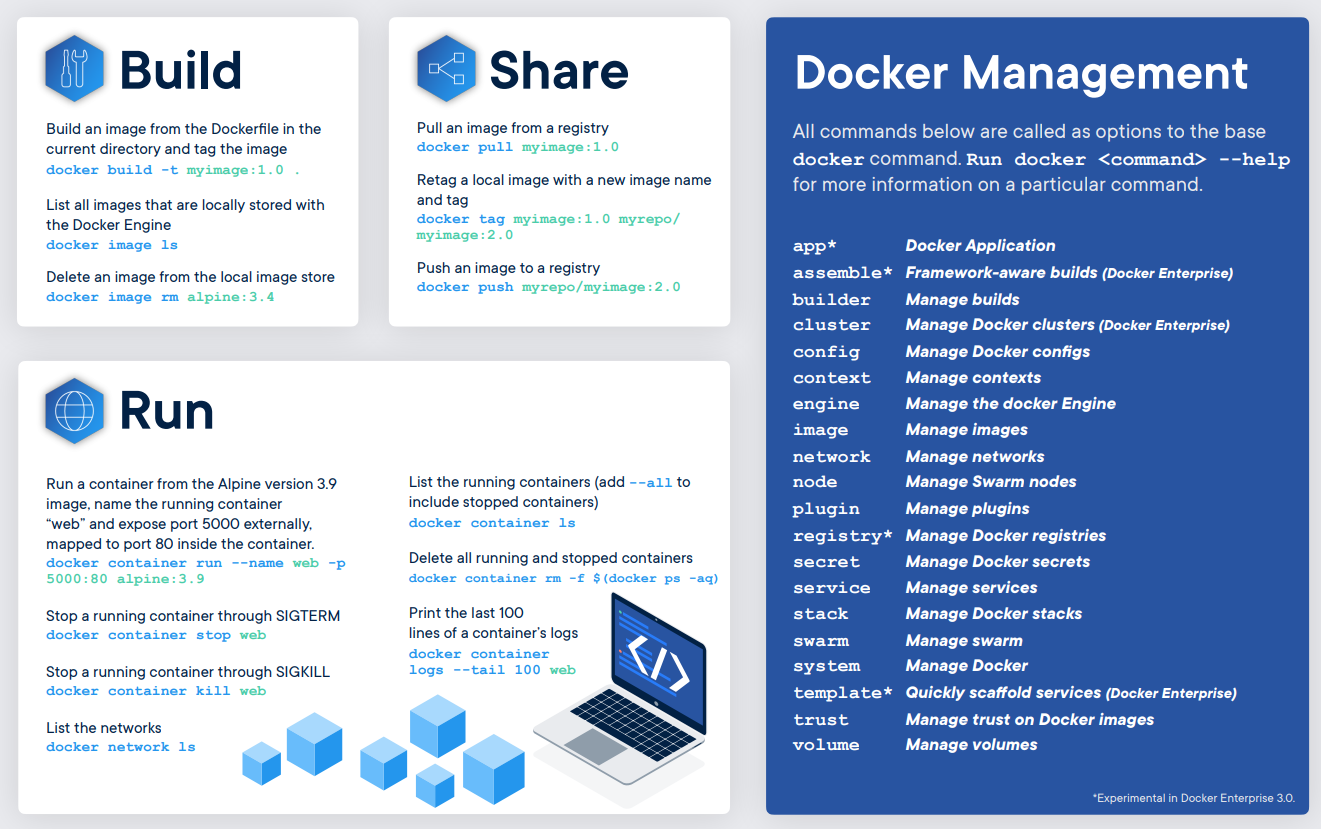
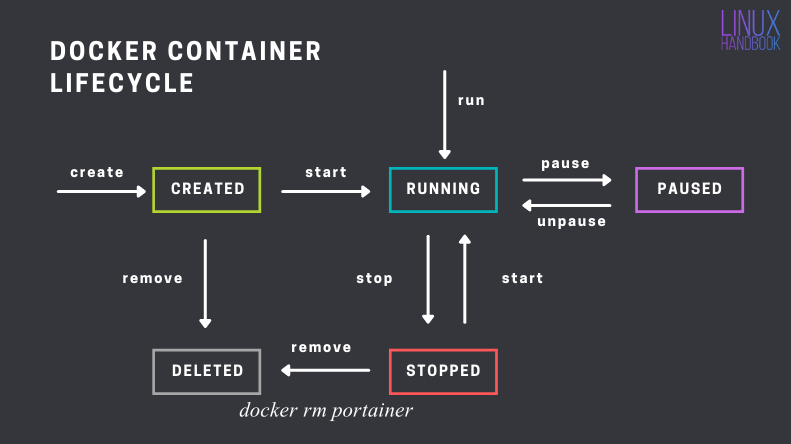
Container Lifecycle[^2]

option

1
2
3
4
# 使用镜像nginx:latest以交互模式启动一个容器,在容器内执行/bin/bash命令。
$ docker run -it nginx:latest /bin/bash
# remove all stop container
$ docker container prune
  • -i: 以交互模式运行容器,通常与 -t 同时使用;
  • -t: 为容器重新分配一个伪输入终端,通常与 -i 同时使用;
  • -d: 后台运行容器,并返回容器ID;
  • -P: 随机端口映射,容器内部端口随机映射到主机的端口
  • -p: 指定端口映射,格式为:主机(宿主)端口:容器端口
  • --name="nginx-lb": 为容器指定一个名称;
  • -e username="ritchie": 设置环境变量;
  • -v <path to datasets>:/datasets 挂载本地目录

Volumes 挂载

volumes allow me to interact with data outside of the docker container.

Volumes is better than bind mounts

  1. Volumes are easier to back up or migrate than bind mounts.
  2. Volumes work on both Linux and Windows containers.
    So option -v is better than --mount

options

1
2
3
4
5
docker run \
-v <path to datasets>:/datasets \
-v <path to approx-vision>:/approx-vision \
-it mbuckler/approx-vision \
/bin/bash

docker-compose

  • Compose 是用于定义和运行多容器 Docker 应用程序的工具。需要额外安装。通过 Compose,您可以使用 YML 文件来配置应用程序需要的所有服务。然后,使用一个命令,就可以从 YML 文件配置中创建并启动所有服务。
  • 和docker共用代理配置,docker info |grep HTTP查看。

十分不建议使用docker-compose命令

使用root用户执行docker-compose up -d,不然会有文件权限问题。各种问题,软件版本问题等,十分折磨。

compose file

1
2
3
4
5
6
7
8
9
10
11
12
13
14
version: "3"

services:
mihoyo-bbs:
image: darkatse/mihoyo-bbs
environment:
- CRON_SIGNIN=30 9 * * *
- MULTI=TRUE
volumes: # 将主机的数据卷或着文件挂载到容器里。
- .:/var/app
logging: # driver:指定服务容器的日志记录驱动程序,默认值为json-file
driver: "json-file"
options:
max-size: "1m" # 最多1m个文件,当达到文件限制上限,会自动删除旧得文件。

AutoMihoyoBBS[^5] 将上述 YAML 文件保存为 docker-compose.yml,然后在包含该文件的目录中运行以下命令:

deploy

docker-compose logs -f命令来查看程序输出。 -f, --follow Follow log output

1
2
3
4
5
6
7
8
9
10
11
12
13
14
15
16
17
18
19
20
# docker-compose up 命令来启动并运行整个应用程序。
# docker-compose down 可以将整个应用停止并删除相关资源。
$ docker-compose up -d
# 在后台执行该服务可以加上 -d 参数
Creating network "automihoyobbs_default" with the default driver
Pulling mihoyo-bbs (darkatse/mihoyo-bbs:)...
latest: Pulling from darkatse/mihoyo-bbs
df9b9388f04a: Pull complete
a1ef3e6b7a02: Pull complete
7a687728470e: Pull complete
4ecf30de1710: Pull complete
a1f99e431609: Pull complete
7e9141a60a66: Pull complete
7aa39aec04ec: Pull complete
a75b4b3d5690: Pull complete
dee0a6b07871: Pull complete
abed80702fed: Pull complete
Digest: sha256:10958801df87675c390a8cdcc153c2f87a41af92d35f9f2cf9b7758aa3e10d1b
Status: Downloaded newer image for darkatse/mihoyo-bbs:latest
Creating automihoyobbs_mihoyo-bbs_1 ... done

docker exec

1
docker exec container bash xxx.sh

实例

提供高版本GCC

宿主机往往因为OS的原因,提供不了合适的GCC版本,为此在docker里编译是一种便捷的选择。

AllForOne 脚本

1
2
3
4
5
6
7
8
9
10
11
12
13
14
15
16
17
18
#!/bin/bash
docker_name="mihoyo-bbs"
docker stop ${docker_name}
docker rm ${docker_name}
echo -e "\033[5;36mOrz 旧容器(镜像)已清理\033[0m"

time_now=$(date "+%m%d%H")
docker build -f dockerfile --tag ${docker_name}:"${time_now}" .
echo -e "\033[5;36mOrz 镜像重建完成\033[0m"

docker run -itd \
--name ${docker_name} \
--log-opt max-size=1m \
-v $(pwd):/var/app \
${docker_name}:"${time_now}"
echo -e "\033[5;36mOrz 镜像启动完成\033[0m"
docker ps -a #顯示目前的 container 及狀態
docker logs ${docker_name} -f # -f, --follow Follow log output

hackergame2020 的源码的dockerfile

奇怪的使用

启动docker并通过xhost保持tmux连接

Docker of VNC

在Linux服务器上使用Docker运行图形化界面的应用程序。为了实现这一点,您需要使用一个特别配置的Docker镜像,该镜像支持图形用户界面(GUI)。这通常涉及到安装一个桌面环境和任何必要的图形驱动程序。

以下是实现这一目的的基本步骤:

  1. 选择一个合适的基础镜像:您可以从一个已经包含了桌面环境的基础镜像开始,例如Ubuntu或Fedora。
  2. 安装图形界面:在Dockerfile中,您可以安装一个桌面环境,如GNOME、KDE或Xfce,以及任何其他必需的软件。
  3. 配置X11或其他显示服务器:为了让图形界面能够显示,您需要配置X11或类似的显示服务器。这可能涉及到暴露和映射一些端口,以及安装和配置VNC服务器或其他远程桌面软件。
  4. 运行容器并连接到图形界面:一旦容器运行起来,您需要通过VNC客户端或其他远程桌面工具连接到它。

这里是一个示例的Dockerfile,用于创建一个带有图形界面的Ubuntu容器:

1
2
3
4
5
6
7
8
9
10
11
12
13
14
15
16
17
18
19
20
21
FROM ubuntu:latest

# 安装必要的软件包
RUN apt-get update && apt-get install -y \
ubuntu-desktop \
vnc4server \
xterm

# 设置VNC服务器
RUN mkdir /root/.vnc
RUN echo "your-password" | vncpasswd -f > /root/.vnc/passwd
RUN chmod 600 /root/.vnc/passwd

# 设置VNC启动脚本
COPY vnc_startup.sh /root/vnc_startup.sh
RUN chmod +x /root/vnc_startup.sh

# 暴露VNC端口
EXPOSE 5900

CMD ["/root/vnc_startup.sh"]

在这个Dockerfile中,ubuntu-desktopvnc4server被安装,以便提供图形界面和VNC访问。您需要创建一个VNC启动脚本(vnc_startup.sh),以启动VNC服务器并运行桌面环境。

请注意,运行图形界面的容器通常比标准的、无GUI的容器更加资源密集,并且可能需要更多的存储空间和内存。此外,确保遵循最佳安全实践,特别是在暴露VNC或其他远程访问服务时。

常见问题

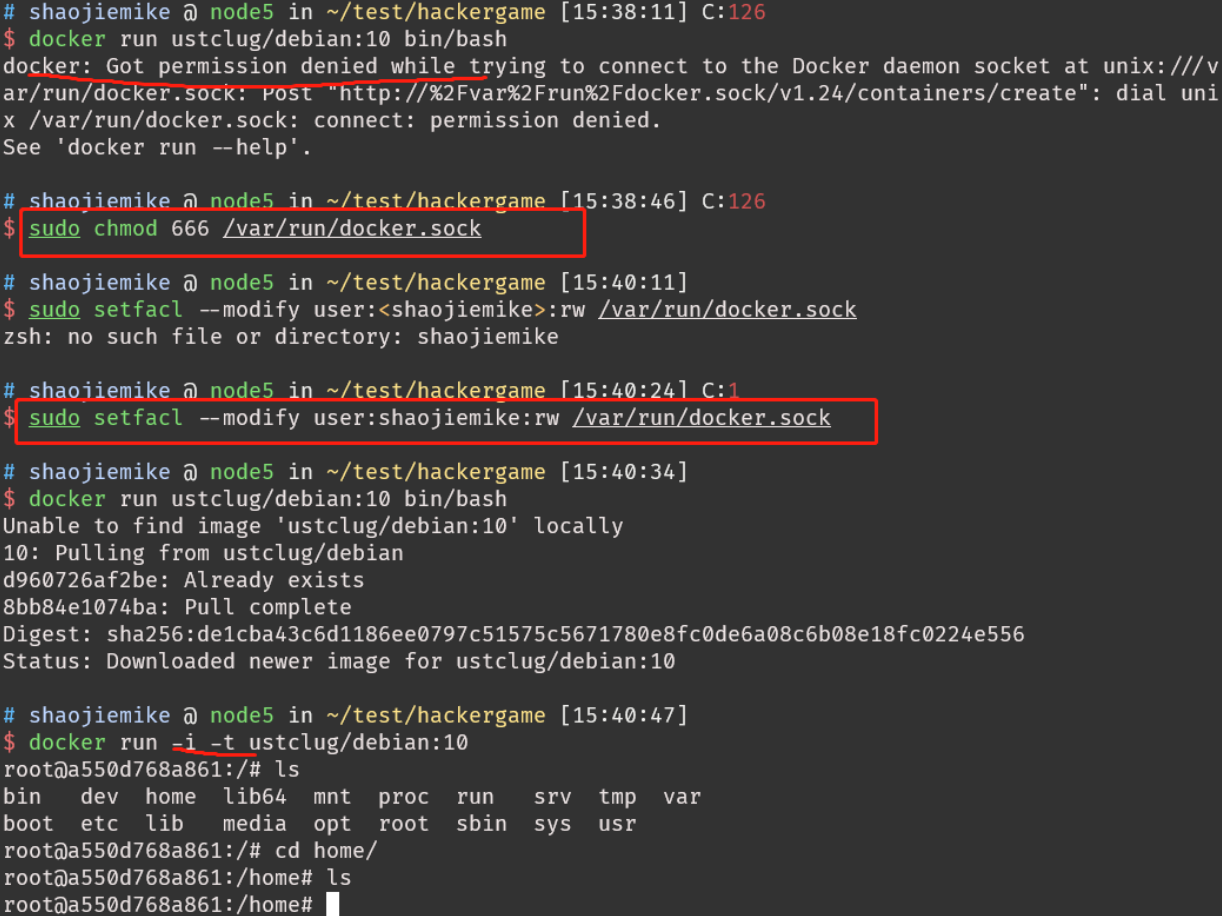
Got permission denied while trying to connect to the Docker daemon socket

  1. sudo 运行
  2. 加入docker用户组
1
2
3
4
5
6
sudo groupadd docker     #添加docker用户组
sudo usermod -aG docker $USER #将登陆用户加入到docker用户组中
sudo gpasswd -a $USER docker # or
groups # 重新登录查看是否生效
newgrp docker #更新用户组
docker ps #测试docker命令是否可以使用sudo正常使用

failed to create endpoint portainer on network bridge

gpt’s solution的无效答案

这个错误表明 Docker 在创建容器时遇到了问题,具体原因是无法将网络接口 veth2c573cd 添加到 Docker 网络桥 docker0,并且提示设备不存在。

查看 Docker 网络列表,确保相关的网络(可能是 bridge)存在:

1
docker network ls

如果不存在,你可以尝试删除并重新创建:

1
2
docker network rm yyy
docker network create yyy

然后再次运行你的 Docker 容器。

sudo password in docker image

link 1 2 3

参考文献

https://cloud.tencent.com/developer/article/1395434

[^1]: How can Docker run distros with different kernels?

[^2]: Docker Commands for Managing Container Lifecycle (Definitive Guide)

[^4]: Developing in Docker

[^6]: https://cloud.tencent.com/developer/article/1806455 & http://www.debugself.com/2018/01/17/docker_network/

Homepage great template

个人网站的需求分析

功能需求

  1. 博客的标签和分类是必须的
  2. 搜索功能、评论功能(Mkdocs 内置搜索)
  3. icon support and usage

个人需求

  1. 少图片的冷淡风
  2. 但是要有彩色或者加粗等功能来体现文中的重要程度。(Mkdocs 的提示框真好用)

个人主页

  1. 基于Mkdocs
  2. Hexo icarus
  3. Hugo PaperMod
  4. Hexo matery

部署位置

cloudflare pages

  1. 不同于之前的教程, 创建位置有所调整。
    1. Workers & Pagescreate an application, choose the Pages tab and follow the git connection tutorial.
    2. 最大的优点是集成了github和mkdocs,可以直接运行mkdocs build 实现部署

GitHub pages

https://kirrito-k423.github.io/

使用自己的域名

替换shaojiemike.pages.dev 变成自己的域名 shaojiemike.top: cloudflare pages 下直接提供Custom domains 的解析 CNAME www shaojiemike.pages.dev

Visualization Ranking

Goal

横向条形图排序赛跑叫Bar chart race

visualization using echart

  1. 完整的中文官方教程和丰富的插件和相关项目
  2. 可以支持vue
  3. 支持动态折线图和动态柱状图

visualization using d3.js

参考项目

但是好像是静态的,而且只有一个排序的柱状图

visualization using anichart

参考文档, 使用template项目

1
2
3
4
5
6
git clone https://github.com/Kirrito-k423/leetcode-ranking-visualization-anichart.git

# Install Dependencies
npm install -g pnpm
pnpm i
pnpm build # error

由于项目还在开发,暂时不进一步尝试

需要进一步的研究学习

暂无

遇到的问题

暂无

开题缘由、总结、反思、吐槽~~

参考文献

Windows CPP Project Setup

摘要

  • 原因1:原本我从来不配置Windows的编译器的,直到服务器zfs挂壁了(看来还是要靠自己~)
  • 原因2:工作时独特的蓝区编码,黄区大项目测试的场景下,push之前测试基本语法错误g++ -fsyntax-only your_file.cpp

GCC编译器

MinGW(推荐)

  • MinGW(Minimalist GNU for Windows),又称mingw32,是将GCC编译器和GNU Binutils移植到Win32平台下的产物,包括一系列头文件(Win32API)、库和可执行文件。
  • 另有可用于产生32位及64位Windows可执行文件的MinGW-w64项目,是从原本MinGW产生的分支。如今已经独立发展
  • 安装gcc
    • MinGW Installation Manager 中 勾选 gcc/g++bash 等项。注意,base包括了关键的make程序。
    • 貌似只能安装在C盘(这很不好
    • 但是如果安装的是便携版的git bash,就没有上述程序。

MSYS2

  • MSYS2是一组工具和库,为您构建、安装和运行本机Windows软件提供了一个易于使用的环境。
  • 包括类似
    • 命令行终端mintty、bash、
    • git和Subversion 版本控制系统、
    • tar和awk 工具,
    • AutoTools 构建系统,
  • Pacman的包管理系统, 来提供包的轻松安装和保持更新的方式,Arch Linux用户应该很熟悉这个系统。
    • 强大的功能: 例如依赖项解析和简单的完整系统升级,以及直接和可重复的包构建
    • 程序包库包含2800多个准备安装的预构建程序包。
  • 所有这些都是基于Cygwin的修改版本。尽管其中一些核心部分是基于Cygwin的,但MSYS2的主要关注点是为本地Windows软件提供一个build环境,并将使用Cygwin的部分保持在最低限度。
  • MSYS2为GCC、Mingw-W64、CPython、CMake、Meson、openssl、FFmpeg、Rust、Ruby等提供了最新的native builds。

Clang and GDB using MSYS2

  • MSYS2 Installation
    • 图形化界面自定义安装路径
    • 打开MSYS2 MSYS安装软件
      1
      2
      3
      4
      # 更新包管理 输入Y继续
      pacman -Syu
      # 安装 UCRT(Universal C Runtime) 版本的 clang gdb
      pacman -S --needed base-devel mingw-w64-ucrt-x86_64-clang mingw-w64-ucrt-x86_64-gdb
    • VSCODE 添加到MSYS2 MinGW UCRT 64-bit终端的路径下。 CTRL+O CTRL+X 保存退出
    • cd ~
      nano .bashrc
      export PATH=$PATH:/e/commonSoftware/Microsoft\ VS\ Code/bin
      
    • 终端里code .就能打开
    • 或者系统路径添加E:\commonSoftware\msys32\ucrt64\bin VSCODE 就能正常访问g++

CMake

官网直接下载,但是由于证书的原因,公司内部使用要内网下载。

网络代理

遵循内部云笔记下载:

  1. iDesk搜索VPN
  2. IPOP端口映射转发网络

Terminal

  1. mobaxterm
  2. Xshell

VSCODE

无法识别库

存在红色波浪线, 插件clangd导致的

无法点击头文件跳转

  • 激活跳转
    • 安装C/C++插件
  • 设置includePath
    • Ctrl+Shift+P输入C/C++ 编辑配置
    • 添加E:\\commonSoftware\\msys32\\ucrt64\\include

参考文献

https://solarianprogrammer.com/2021/06/11/install-clang-windows-msys2-mingw-w64/

https://blog.csdn.net/m0_51429482/article/details/125191731